Top Alternatives To Google Reader
Google recently announced the discontinuation of Google Reader, a product with a vocal following now scrambling to find alternatives. Of course a lot of people have already voiced their opinions about Google keeping products like Google Sites and Correlate open while discontinuing Reader. Others are asking if RSS is already dead benefiting Twitter, Facebook and Instagram.
We have compiled a few alternative RSS readers for you when Google Reader close down July 1, 2013.
Feedly
Feedly were quick in trying to catch Google Reader users, with a feature where users can connect their Google Reader account with Feedly and get the same setup and feeds as in Google Reader. This works like a charm with just a click, and takes a few seconds.
Another interesting feature with Feedly is the updated user interface, Google Reader wasn’t the prettiest product on the market but Feedly really looks great and displays the subscribed feeds in a beautiful way, almost making RSS fun again.
It’s possible to customize the main page of Feedly, for example adding widgets displaying stock market movements, your Facebook or Twitter feed.
Feedly is available in the browser or on mobile devices (Android, iOS and Kindle).
Netvibes
Netvibes is not entirely a RSS-reader, but a dashboard application for following almost anything online. Getting started is quite easy, you don’t even need to create an account. Start by entering a topic that you want to follow, Netvibes will then compile a set of standard widgets. The widgets include sources such as Twitter, Facebook (open posts), Google blog search, Yahoo News etc. It’s then possible to add sources of your choice using RSS.
Netvibes has two different modes, widget and reader mode. The reader mode has the classic RSS-reader feel to it. Beside using Netvibes in the browser there are also apps available for Android and iOS. It’s possible to import your Google Reader data to Netvibes, but the process is a little bit more difficult than Feedly’s. (http://blog.netvibes.com/easily-migrate-from-google-reader-to-netvibes/
Overall we like Netvibes, but mainly from a monitoring perspective where it really is shining.
NewsBlur
NewsBlur is another browser based RSS-reader alternative to Google Reader, also available for Android and iOS. The app is updated in real-time when new stories from an RSS-feed is added. An interesting feature is the blurblog, each user gets an individual public feed where it’s possible to share stories.
We think the interface has too many options and buttons for it to be compelling for a wider audience, but this is of course individual preferences, and we know some users like these kind of interfaces.
The Old Reader
The Old Reader is perhaps not as well known as the alternatives above. It’s a light-weight browser based RSS-reader, with no other real options but we really like the minimalistic interface. It used to have Google Reader import but according to their blog they had to turn it off temporarily to be able to handle the traffic. There are also no mobile apps for the Old Reader.
Android Photo Editing – Snapseed
Snapseed is a photo-editing app, primarily for Android and iOS devices, but there is also a desktop version (Mac OS X and Windows).We tested the recently released Android version.
The average mobile user is not looking for a Photoshop-like experience when editing their beloved photos; instead most are trying to find apps were they quickly can edit photos of their latest night out or birthday party before posting them to Facebook or Twitter. This pose a problem, most basic photo-editing apps are cheesy, with loads of unwanted features, with only fair results. Thankfully times are changing.
Snapseed was originally developed by a company called Nik Software, primarily based in Germany. During 2012 Google bought the company and the Snapseed app, and we are already beginning to see the fruits of the acquisition, recently Snapseed for Android was released, and all versions of the app are now free.
Using Snapseed is really a breeze, it is designed to be quick to operate and easy to share photos to different social networks. There is automatic contrast and color correction, but also various filters, such as vintage, drama, grunge and black and white. Each filter can be further adjusted in different ways to create effects. The gallery on Snapseeds' website features some remarkable results.
The sharing options in Snapseed include most standard social networks, such as Facebook, Twitter, Instagram and Google +. However since Google bought Snapseed Google+ has a more prominent shortcut than other social networks.
While the desktop version of Snapseed probably isn’t what most users are looking for, it includes the possibility to edit RAW-files.
So far Snapseed is very similar to the features in Instagram (which is in fact why Google probably bought the app in the first place) and loads of other apps available, but the ease of operating Snapseed, the fact that it’s free and the actual results outpaces much of the competition.
Google Chrome for iPhone and iPad
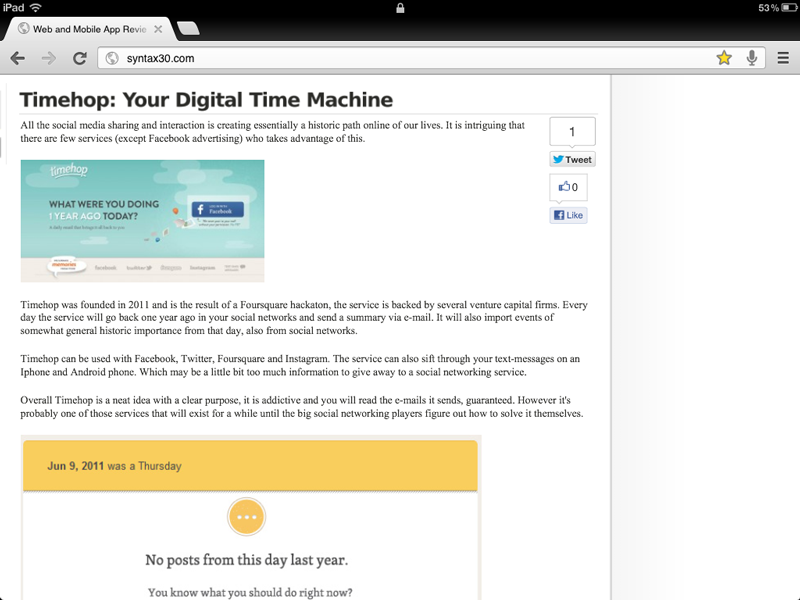
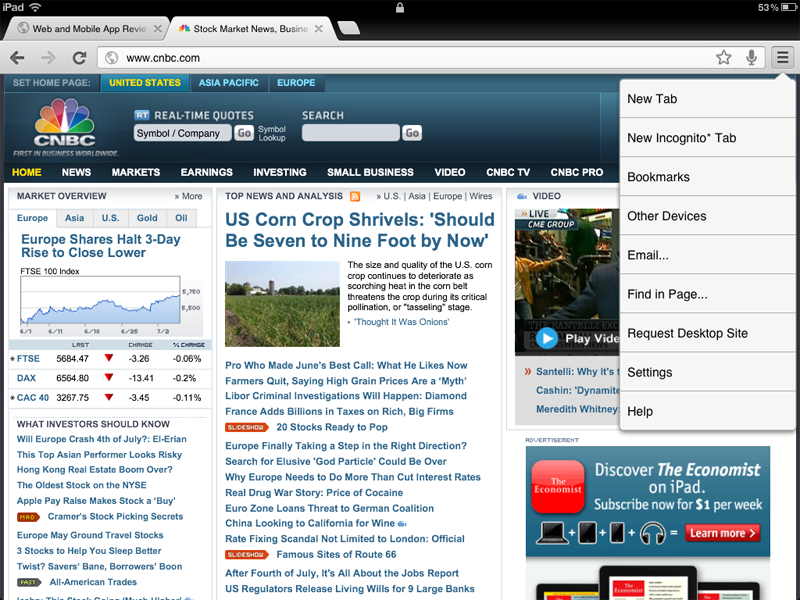
Google recently released Google Chrome for iOS, which means that the browser now can be used on the iPhone and iPad. The release is raising the stakes in the battle between Google, Apple and Microsoft for mobile users.
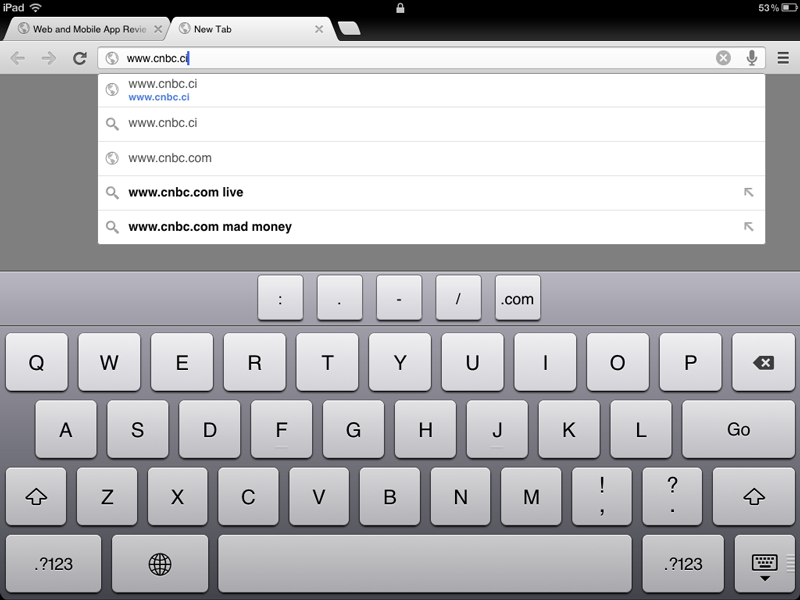
Regarding web-browsing for the iOS, Google Chrome doesn’t bring much new to the table. Chrome basically the same features as Safari for the iPad; voice-search is perhaps the most interesting feature. For the Ipad it’s a bit unnecessary but for the Iphone voice search is very convenient and worked well when we tested it.
The iOS version of Google Chrome is very similar to the desktop, the navigation is the same but it’s possible to browse between tabs by swiping across the screen. To the right there is a menu with a bunch of options and features. For example the incognito mode is available in the iOS-version, and also the ability to view web-pages as the desktop version of Chrome. Obviously Google Chrome for iOS has no support for flash-websites.
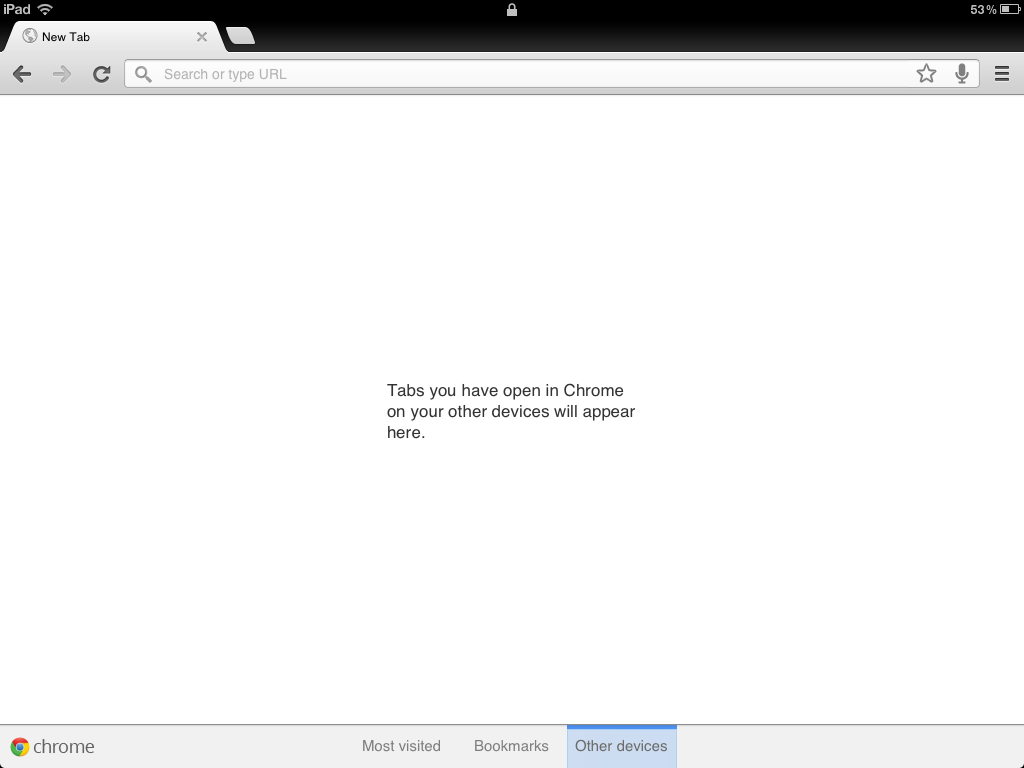
The whole idea with Google Chrome for the iOS is of course that you can sync bookmarks between different devices using Chrome, it’s also possible to continue a browsing session on your desktop, for example opening a tab previously viewed on your iPad or iPhone.
Apple have carefully plotted so that third party browsers in the iOS can’t benefit from the much faster Nitro java-script engine available in Safari, this means that Google Chrome is a bit slower than Safari. However it is barely noticeable and it actually feels snappier than for example Atomic web and other third party browsers.
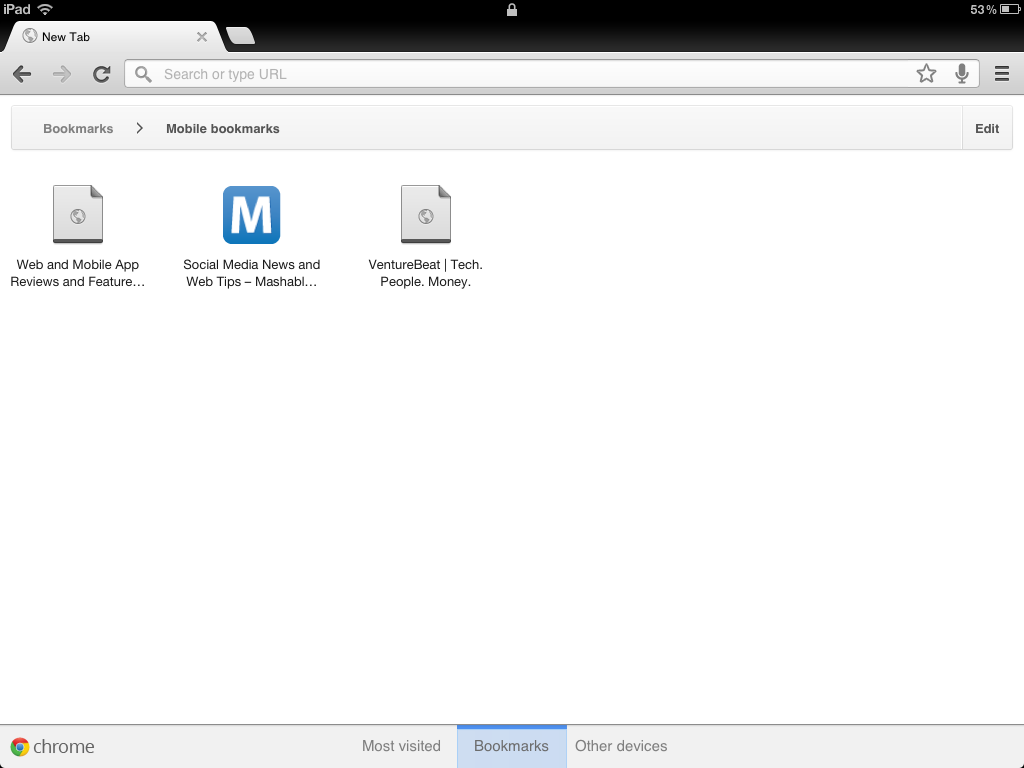
A major downside with the Chrome browser is the way Google have chosen to structure the bookmarks, they are actually part of the browsing experience and not in the sidebar to the right as in the original desktop version. As a result it’s harder to find relevant bookmarks.
Google Chrome for iOS is mainly aimed at current users of the desktop version, and it really provides much better functionality than Safari. However few current desktop Safari users will probably migrate.
Ipad note taking apps: Notability
One of the many selling points with the Ipad is to take notes, in meetings or on the go. Yet the note-taking application that comes with it has a lot left to be desired (which for a $400-600 device may seem weird).
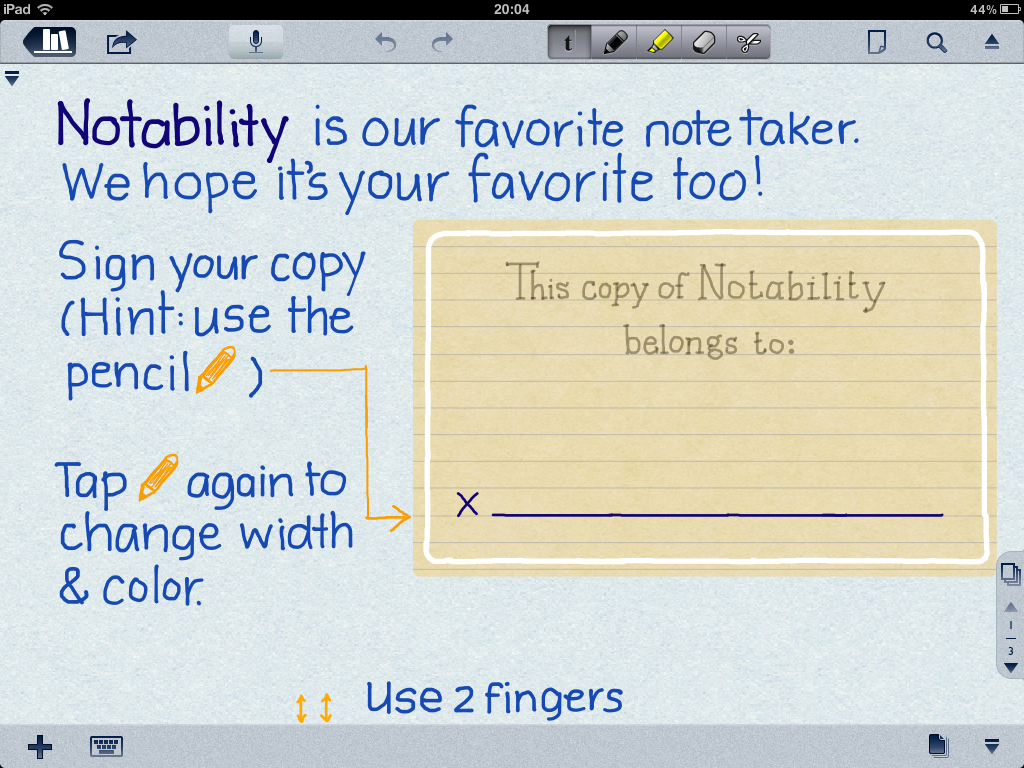
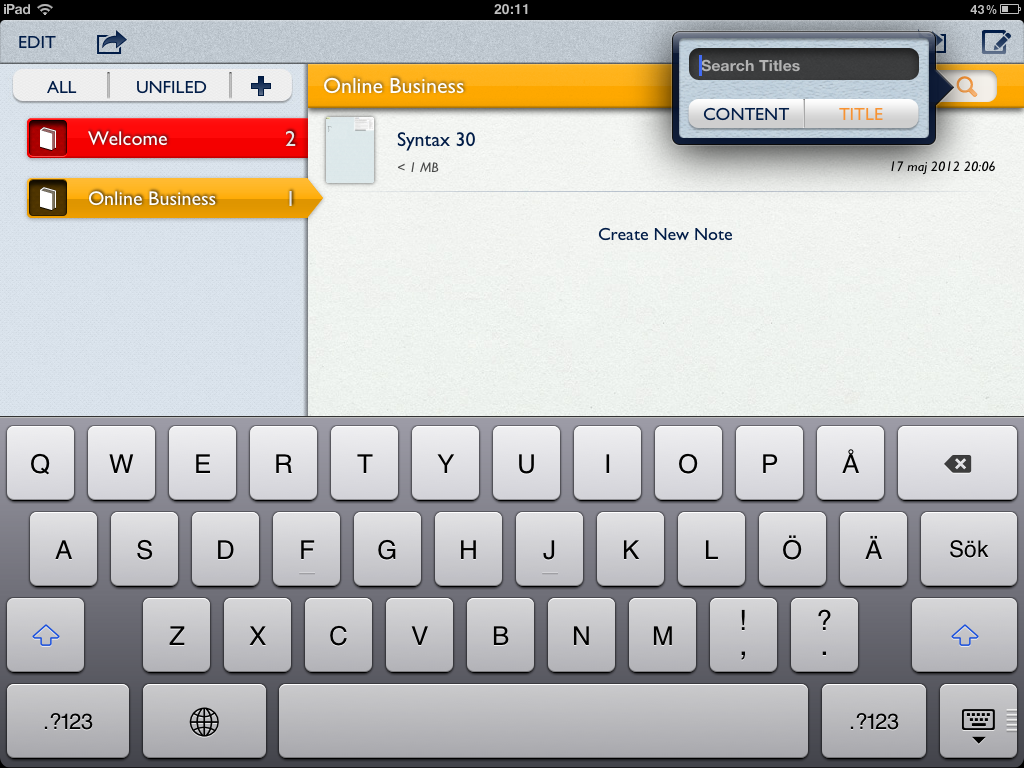
Notability an app by GingerLabs adds a lot of note functionality to the Ipad not that common in other apps. First of all the app has handwriting recognition, which means that it is entirely possible to use a for the Ipad to take notes, or use your fingers. Using a pen makes the note-taking process much easier than using the keyboard, but using just your fingers is a cumbersome and slow process. I tried it for a while but eventually gave up and bought a capacitive stylus.
Another problem with the handwriting recognition in Notability is the fact that you can’t re-size the letters after writing, other similar apps for the Ipad have this feature.
Notability also has the original Ipad software keyboard functionality as well as recording. Using the word processing functionality is very similar to QuickOffice; there are some basic functionality such as styling, outlining and a spell-checker. The recording feature is actually something that you will use a lot when in meetings, seminars or in lectures, each recording is linked to a note. For example at a seminar you will have both your own notes as well as the voice recordings, which is very neat.
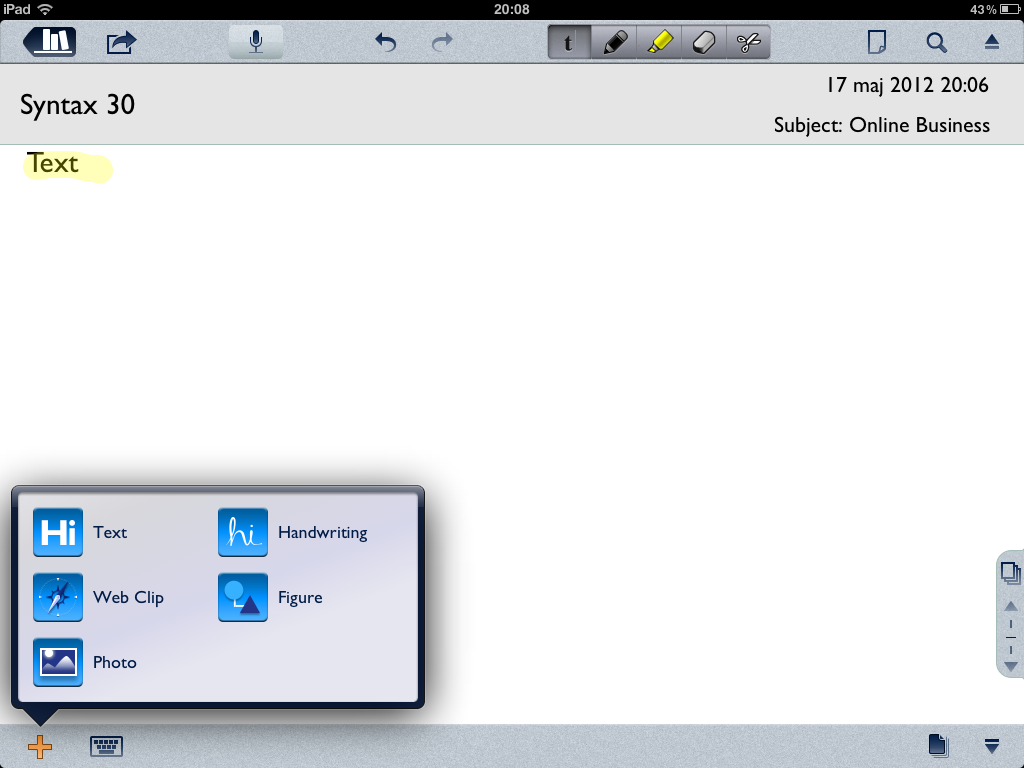
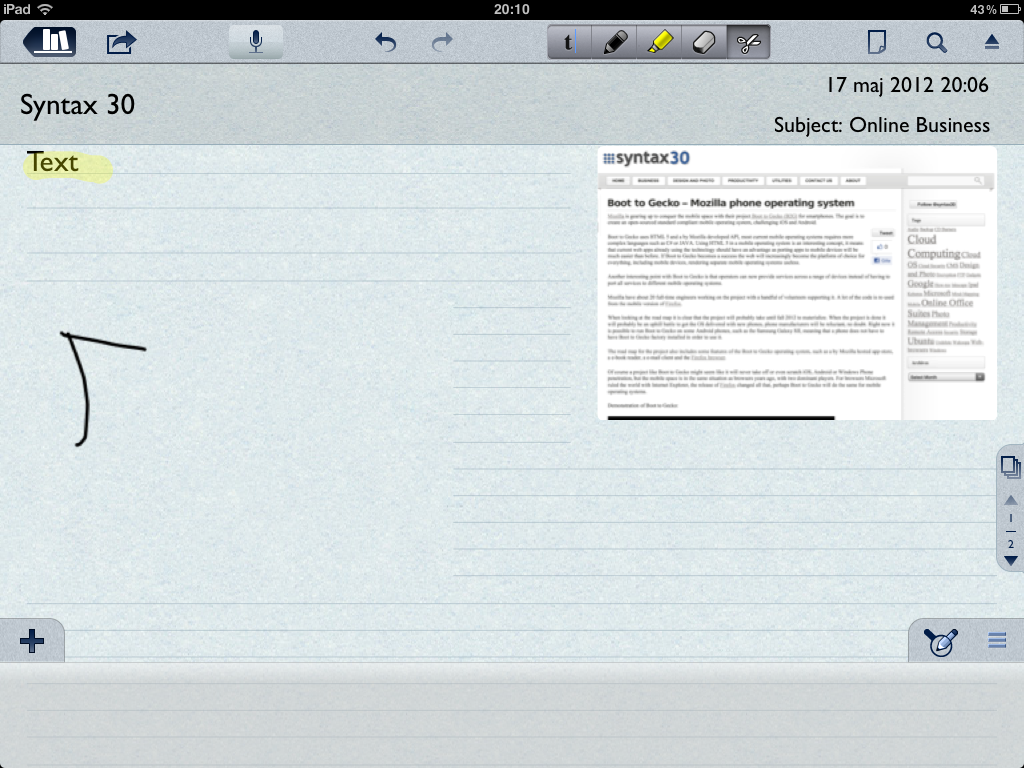
Using the Ipad camera it’s possible to insert images into your notes, and other objects such as web clippings and drawings. A weird thing with Notability is that it isn’t possible to erase lines in drawings, hopefully it will be fixed, but it is a bit awkward to redo drawings when it is impossible to erase parts of them. Features that are included are the usual cut and paste options and highlighting words and paragraphs.
An interesting feature in Notability the possibility to import PDF-files and annotate them. This works very well, the PDF shows up in a notebook and it’s possible to add notes and highlights in and around the PDF. On an older Ipad (1 generation) this feature is a bit slow, however it’s still a very useful feature, saving a lot of paper and weight.
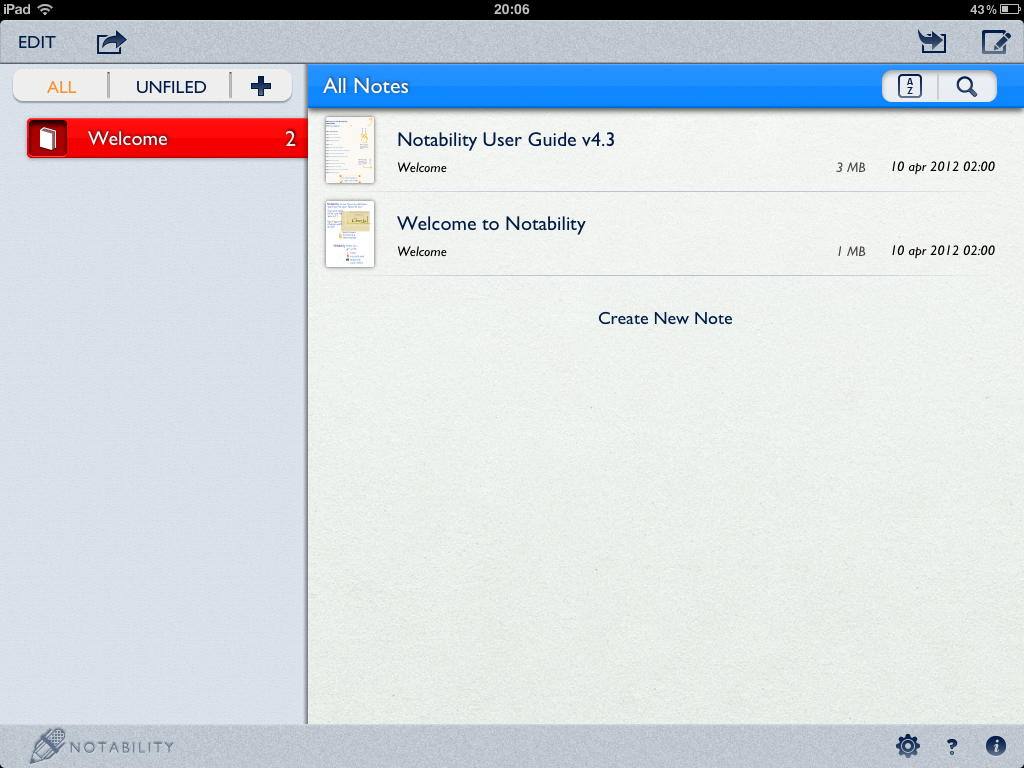
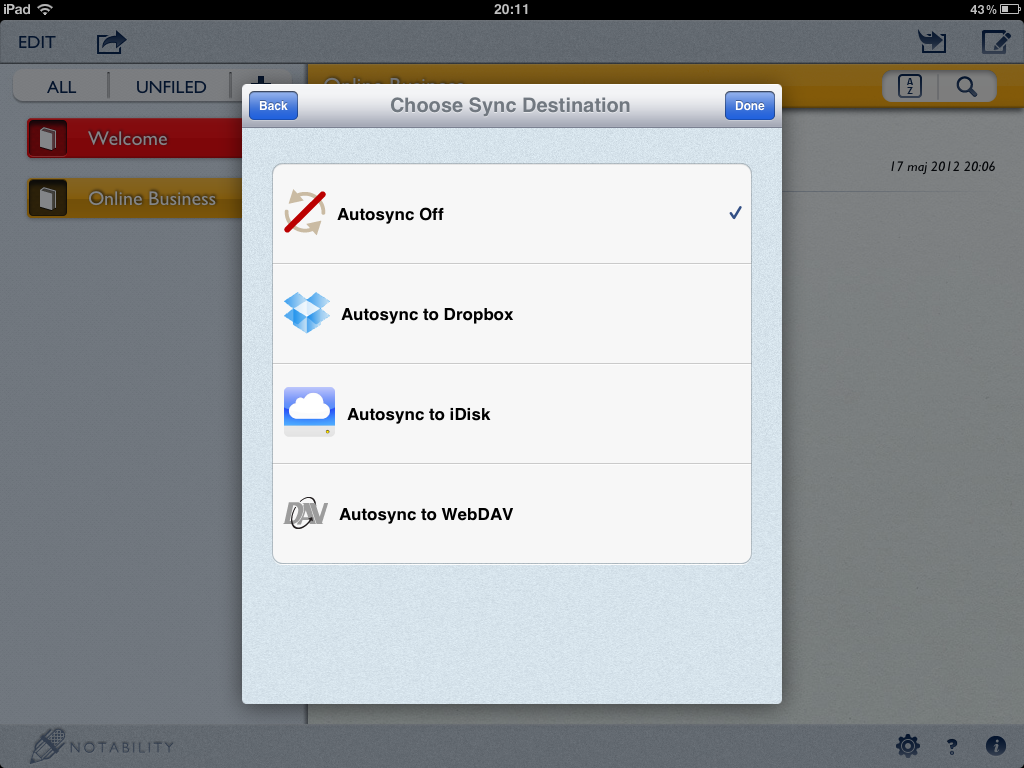
In Notability it is possible to create an unlimited number of notebooks with notes on different subjects, organizing them is done using a drag and drop interface, which is straight-forward. Notebooks and notes can also be password protected and synced with services such as Dropbox, iDisk or WebDAV.
Notability is a neat app, many of the features should have been included with the Ipad from the very beginning, however Notability has great value with lots of features on the cheap. It is definitely one of the best note-taking application for the Ipad, it is also faster and less complex than the main competitor, Evernote.
Google Glasses – Is augmented reality the next big thing?
It seems that when a tech company gets too extensive cash reserves they always want to go into augmented reality creating wearable computers (Microsoft and IBM has already been there).
Google has a research project going on, the company wants to create glasses connected to Google’s services to provide an augmented reality. The glasses will be able to display chats, messages, the weather and maps in a person's’ field of vision, according to a post the company made on Google+.
Controlling the Google Glasses is done by voice commands (similar to the IBM wearable computing efforts mentioned below). If you want to know what a day with Google Glasses is like view the video below:
Perhaps the market is ready for these type of devices, but it is doubtful that such glasses will be used for checking the weather or video-chatting. More likely usage scenarios are for providing information about anything the users sees, gaming and navigation in terrain.
Google is certainly not the first tech company to create wearable computers. Most wearable computer efforts for consumers has been failures.
One example is IBM who launched their wearable computer derived from a ThinkPad laptop in 1998. It had 233 MHz Intel processor, 64 MB RAM and was able to run Windows 98, according to the company website. The computer was controlled using voice commands.
Of course the computer never hit the market, and the commercial didn’t do it any favours either:
Clear – Simple to-do lists for the Iphone
When I first heard about Clear, I thought it was yet another to-do list app for the Iphone, doing the same thing as most others are. Clear is however different, the complexity level have been reduced significantly.
To-do lists on the Iphone and other mobile devices is apparently big business given the countless solutions available in the App Store. However most of them are very complex to work with, requiring more time to manage the to-do lists than performing the tasks.
The developers behind Clear wants to change all that by creating a simple no frills to-do list app. Clear is beautifully designed app with a user interface entirely based on gestures. Each task is represented by a box, the priority is determined by the order of tasks and the color of them (red is more important than yellow).
When first starting Clear it will take you through the different gestures needed to use it, all-though the interface based on gestures is fresh and effective, it takes some initial hardship to learn.
In Clear it's possible to have different lists for different types of tasks, for example one list for work-related tasks and one for personal goals. The tasks are synced with Itunes, there is no cloud sync available, so it isn't possible to view the tasks on anything else than the Iphone. Of course this might be a problem for people working with multiple devices, or on the road (Remember the Milk and even Google Calendar's to-do list is better in this sense).
Clear does make you more productive as it focuses on just a simple to-do list without bunches of categories, prioritizations etc. Maybe it doesn't replace all the advanced solutions, but it should work for most needs of simply structuring tasks and get them done.
Ipad Office Suites: Apple Pages
Apple Pages has been around for the Mac since 2005, it is marketed as a word processing program, but also a light layout application. In 2009 Apple released Pages to the Ipad, while there certainly are many word processors for the Ipad available, Pages should be the ultimate one given that Apple both control the software and the hardware.
When first launching Pages for the Ipad it is clear that it is one of the more beautiful word processing apps for iOS. However beautiful doesn't cut it, it also have to be efficient to use. Pages integrate neatly with ICloud (Apples sync application), however Quickoffice Pro HD and other office apps have similar integration.
A somewhat strange sync thing is that Pages on the Ipad will not sync with Pages on the Mac, even-though they are apps from the same company in the same environment. Also Apple didn't include any sync with services such as Google Docs or Dropbox, which other office suites have (such as Quickoffice Pro HD)
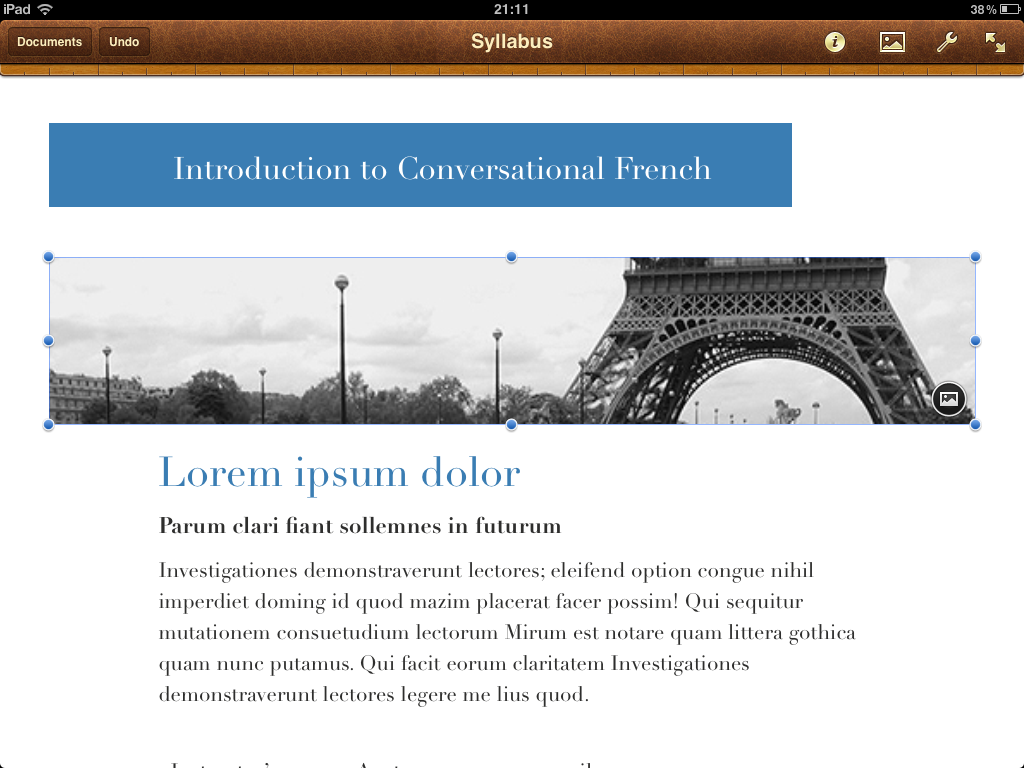
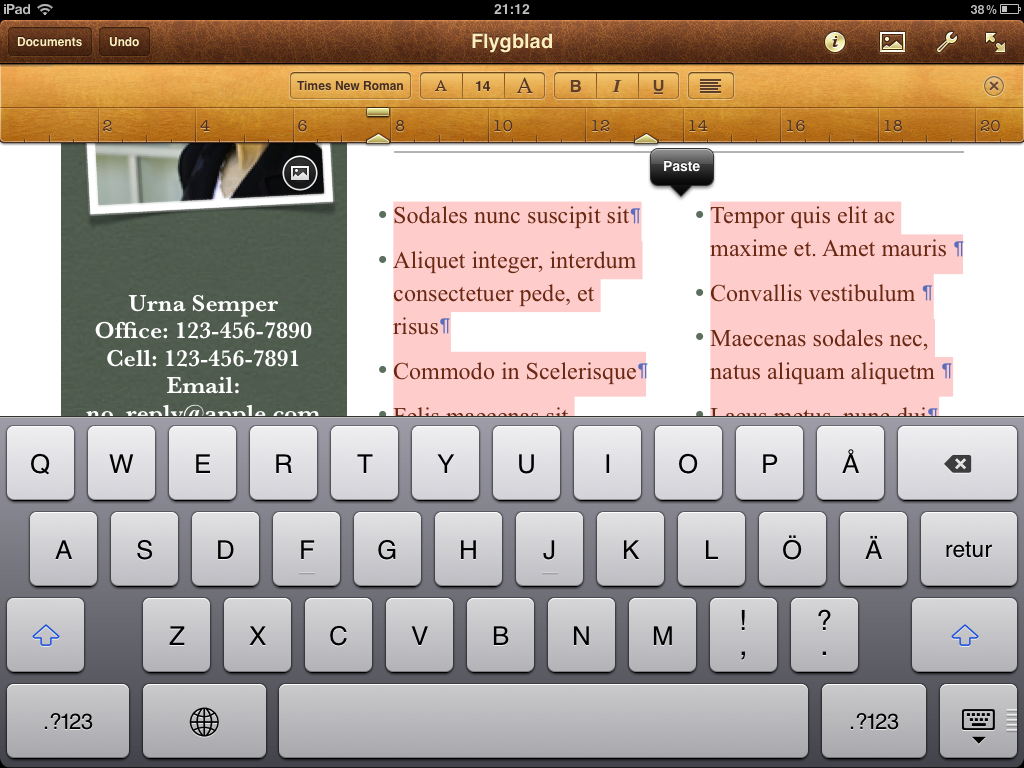
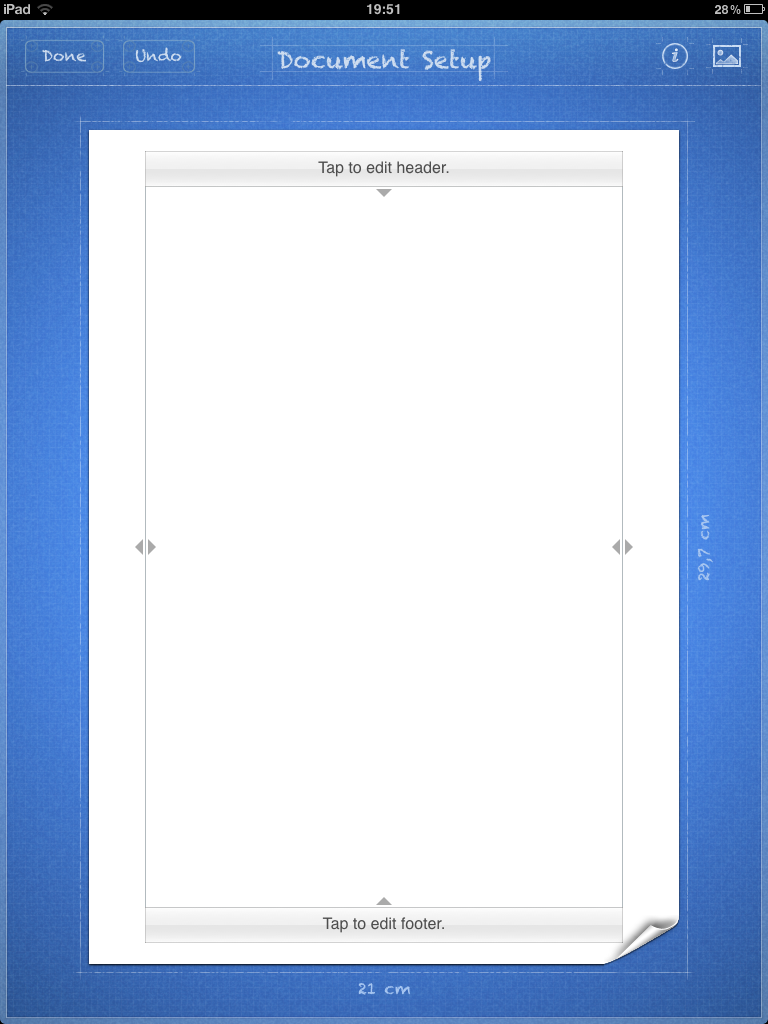
Apple Pages is easy to use, the interface design breathes Apple and should work for most people, even if you are used to Windows or Android software previously. It is possible to set margins and the overall size of the document as well as line spacing. Also Pages makes it possible to add more columns than one and create numbered lists.
Pages does have more layouting options than other word processing apps for the Ipad, for example it is possible to insert images and create tables (something that is lacking in Quickoffice Pro HD, where it is only possible to edit existing tables). Pages for Ipad also behave faster than the competition, for example when writing using the Apple Wireless keyboard with Ipad there is generally a slight input lag in Quickoffice Pro HD, but none in Pages.
A neat feature in Pages is the predefined templates for creating various publications, included are 16 templates for reports, invitations, letters and so on. However it is not possible to create custom templates in Pages for the Ipad, for example it is unlikely that a real estate broker would use a standard template from Apple, of course most businesses want their own custom templates.
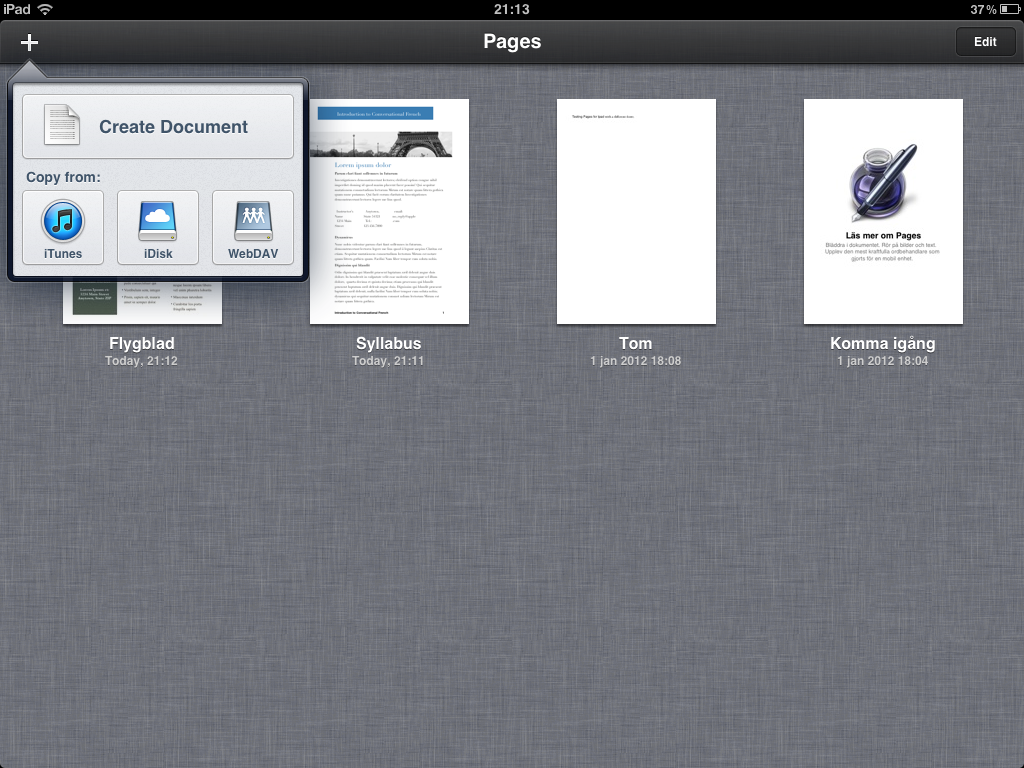
Pages can handle most common files from for example Microsoft Word (.doc, .docx) and Pages (for OSx), it is also possible to view PDF-files.
Overall Pages for Ipad is the best word processing App for the Ipad, that doesn't make it perfect. It is easy to use but has its own set of issues, such as a lack of creating custom templates even-though Apple market it as a layout application.
If you are buying Pages for word processing and some light layout you will not be disappointed, but if you are after InDesign for the Ipad you are out of luck. Pages is also more expensive than the competition. At least if you want a whole office suite, since you will have to add Numbers and Keynote to the purchasing list, which all together will cost more than Quickoffice Pro HD or Office HD.
Ipad Office Suites: Quickoffice Pro HD
Can tablets and mobile devices really be an alternative for heavy office users? Is it time to ditch the laptop in favor of your Ipad or Samsung Galaxy Tab? Read our review of Quickoffice Pro HD and find out how it compares to other mobile office suites.
Quickoffice Pro is available both for the Iphone and Ipad(HD), it is also available for Android devices and tablets. It is one of the more affordable alternatives on the market for tablet Office Suites. For $14.99 in the Apple Appstore you get Word-processing, Spreadsheets, Presentations and a PDF-reader. Compare that to Apple’s IWork where each separate application is about $9.99.
In the Word-processing application it is possible to do all the basic things, such as change font-size, add bullets change colors etc. If you would like to create more complex documents containing graphics, tables (it is possible to edit existing tables) or table of contents it will not be possible in Quick office Pro HD, but for writing memos, short summaries etc it works great. However Pages (from Apple) have most of the more complex features, such as inserting graphics and creating tables.
Similarly the Spreadsheet app works well for creating basic spreadsheets, with borders, different number formats, and developing simple functions (such as =SUM) etc. For more heavy duty spreadsheet work Quickoffice Pro HD will not be sufficient, for example you can’t use more complex formulas (such as COUNTIF, SUMIF etc).
Another downside with the Spreadsheet part is the lack of charting features, which actually should have been included, especially given the price for Quickoffice Pro. The feature is available in Numbers from Apple, according to Quickoffice it should be possible to view charts created in Excel. Presentations in Quickoffice Pro HD is one of the suites stronger points, here it suddenly is possible to insert images from the Ipad. Also editing and creating a presentations is easy, but it is however somewhat limited and can be difficult if you are having a lot of objects stacked in proximity because of the touch interface. There are no animations or transition options.
Using Microsoft Office documents in Quickoffice Pro HD was no problem, they rendered without any problems and looked ok both in Quickoffice and in Microsoft Office on the desktop. Formats supported are Word (.doc and .docx) and Excel (.xls and .xlsx). When it comes to presentations the .pptx is format is not supported but the original PowerPoint format is (.ppt).
A nice feature in Quickoffice Pro HD is the sharing and syncing options, for example it it possible to connect it to Google Docs, Dropbox, Evernote, SugarSync, Box, Huddle Catch and MobileMe. It is also very neatly integrated into the app using folders and is easily accessible. Quickoffice Pro HD also have built in e-mail capabilities, but they are a bit strange since it isn’t integrated with the Ipad or Android mail setup on the device. You have to manually enter your own e-mail address as well, when we tested the e-mail service it didn’t work and returned an application error.
It is also possible to read PDF-files and save existing documents to PDF, something that often is needed in a business setting. As a PDF-reader the app works likes a charm.
Overall Quickoffice Pro HD is a solid application for reading and editing existing documents and spreadsheets, it’s perfect to use when away from your desktop or laptop. It is also easy to understand the user interface.
When we tested QuickOffice Pro HD we used it a lot on flights and airports, where you probably will not do any longer editing, but still need to get some work done. However Quickoffice Pro HD is limited to basic writing and editing, and is in most cases no replacement for a regular laptop office suite such as Microsoft Office or iWork.
[starrater tpl=10]