Syntax30.com
1May/130

Top 5 Outlook.com Tricks

Microsoft is taking a shot at Gmail replacing Hotmail with their revamped e-mail service Outlook.com, including a new interface and various other options. Of course there was an outcry in the Hotmail community for changing the interface, but the service now have 25 million users.

Continue reading to find out how you can be more effective when using Outlook.com (most of our tips are located in the “More mail settings section”).


1. Sweep it

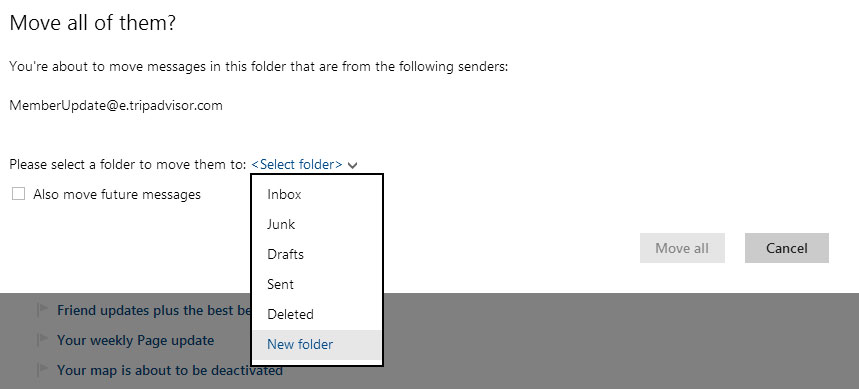
If your inbox is like mine, that is a dark hole of endless messages, it’s often time consuming to clear it up. Outlook.com features a simple feature called “sweep”, it works basically the same way as the label system in Gmail where messages with certain characteristics are filed or deleted. It’s also possible to schedule sweeps.

For example it’s possible to file messages from a specific sender or delete them all together.

Outlook.com Sweep


2. Use Skydrive to send attachments

Outlook.com has a limit of 25 MB when sending attachements, anything above that and the service will suggest using Skydrive, which means that your attachement is uploaded into Skydrive and sent with a URL to the location instead.

If you often send large attachments or if you don’t want to clog people’s inboxes it’s possible to have Skydrive set as default for attachments.


3. Customize the layout

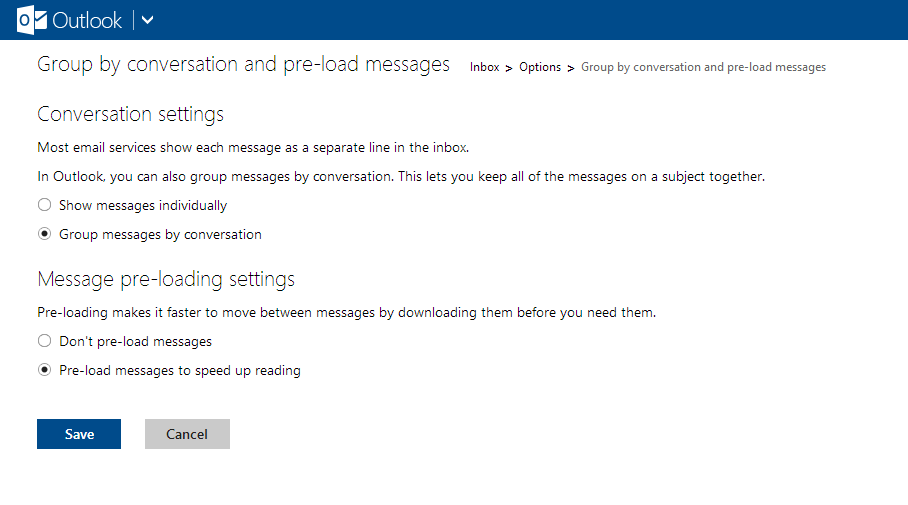
Outlook.com comes with a set of options to customize the layout of your inbox. For example it’s possible to change colors and the location of the reading pane (right or bottom). Another nice feature is the Group by conversation option, which basically creates conversation threads instead of displaying individual messages.

Outlook.com Group By Conversation


4. Keyboard shortcuts

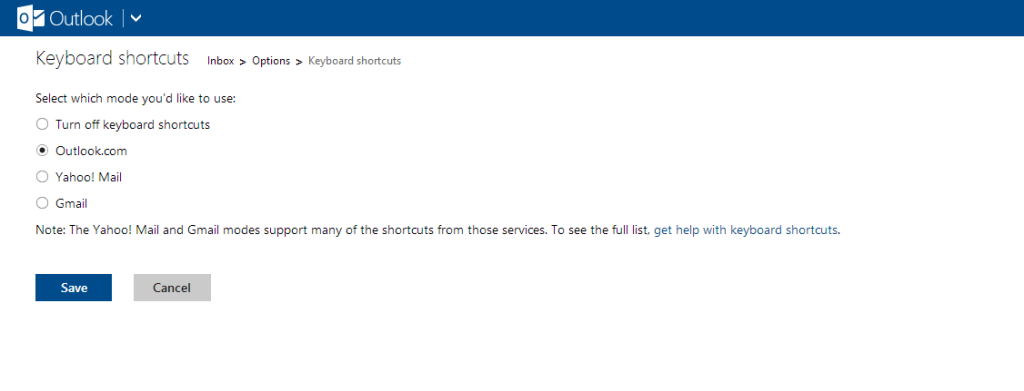
Outlook.com has a set of keyboard shotcuts as most mail services do. However if you are coming from Gmail or Yahoo! Mail, there are also mapped keyboard shortcuts for those services.

Outlook.com Keyboard Shortcuts


5. Security, connect your mobile

We recommend connecting your Microsoft Live Account with a mobile device, this means that if you have lost your password or if you account has been hacked you can still access the account from a code recieved by text message (two-step verification).


30Apr/120

Google Drive – Google moves into cloud storage

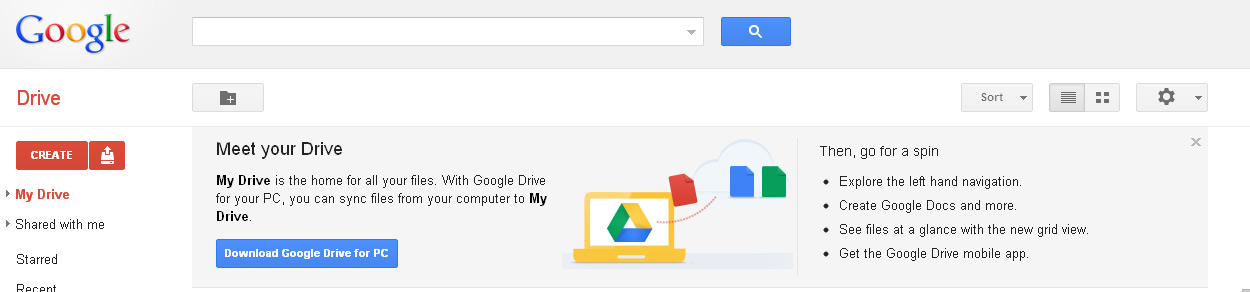
Google has finally released their own online file sync service after years of rumors; Google Drive will primarily enhance the experience for existing Google Docs users but also strikes a blow to some existing file sync and sharing services.

It’s not like there isn’t any competition in the online backup and file sync sector with services like Carbonite, Dropbox and Microsoft’s Skydrive. Although it isn’t surprising that Google is moving in to the space it is much less dramatic than most industry “experts” seem to think.

Each Google user have to apply for Google Drive before it’s activated, once it is up and running the existing Google Docs directory will become Google Drive. The difference between Google Drive and the old Docs directory is that it is possible to automatically sync files between Google Docs, a desktop/laptop computer and Android devices (Ipad and Iphone apps are on the way when this is written).

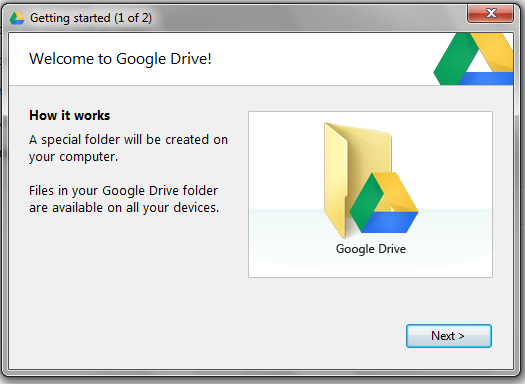
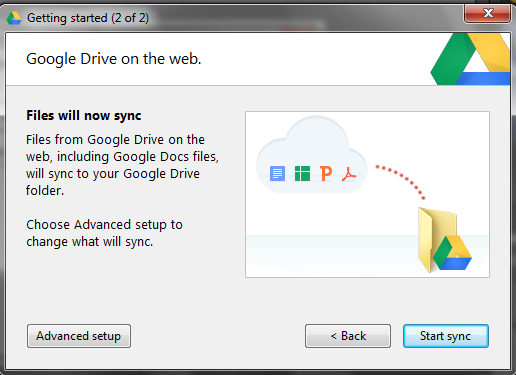
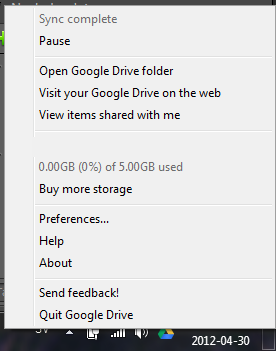
Syncing from a desktop or laptop is done by downloading an application running in the background automatically syncing selected files. We tested the app with Windows 7 without any issues.

Another interesting part of Google Drive is the collaboration options, although they already existed in Google Docs it’s now possible to easily share a document using Google + or even better e-mail a link to a bulky document in Google Drive using Gmail.

Google Drive also saves all changes to documents, making it possible to go back to previous versions easily. This makes Google Drive more similar to Dropbox than pure backup services like Carbonite.

When we tested Google Drive it was apparent that Google put some time into making the app display different file formats, for example it is possible to view Photoshop and Illustrator files without any third party programs.

Google offers 5 GB of free storage, which falls somewhere in between Dropbox (2 GB) and Skydrive (7 GB). It is enough storage for most personal needs, however Google offers up to 16 TB of data. 25 GB of data costs $2.49 / month and 100 GB $4.99, compared to Dropbox which offers 100 GB for 19.99/month this is cheap. When buying Google Drive space, the storage can also be used for Picasa.

The ones that should be scared of Google Drive is not Microsoft, because it is not a threat to Skydrive as Microsoft’s alternative is integrated in Microsoft Office, tightly. Instead Google Drive is a direct attack on services like Dropbox and Sugarsync, which has nothing to offer in terms of integration. Overall Google Drive is a good product, it has more value than Dropbox but is also a solid alternative in it’s free version.

14Jan/120

Ipad Office Suites: Apple Pages

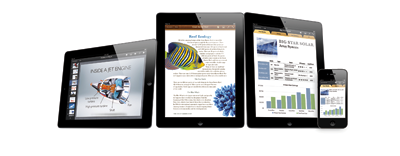
Apple Pages has been around for the Mac since 2005, it is marketed as a word processing program, but also a light layout application. In 2009 Apple released Pages to the Ipad, while there certainly are many word processors for the Ipad available, Pages should be the ultimate one given that Apple both control the software and the hardware.

Apple Pages for Ipad

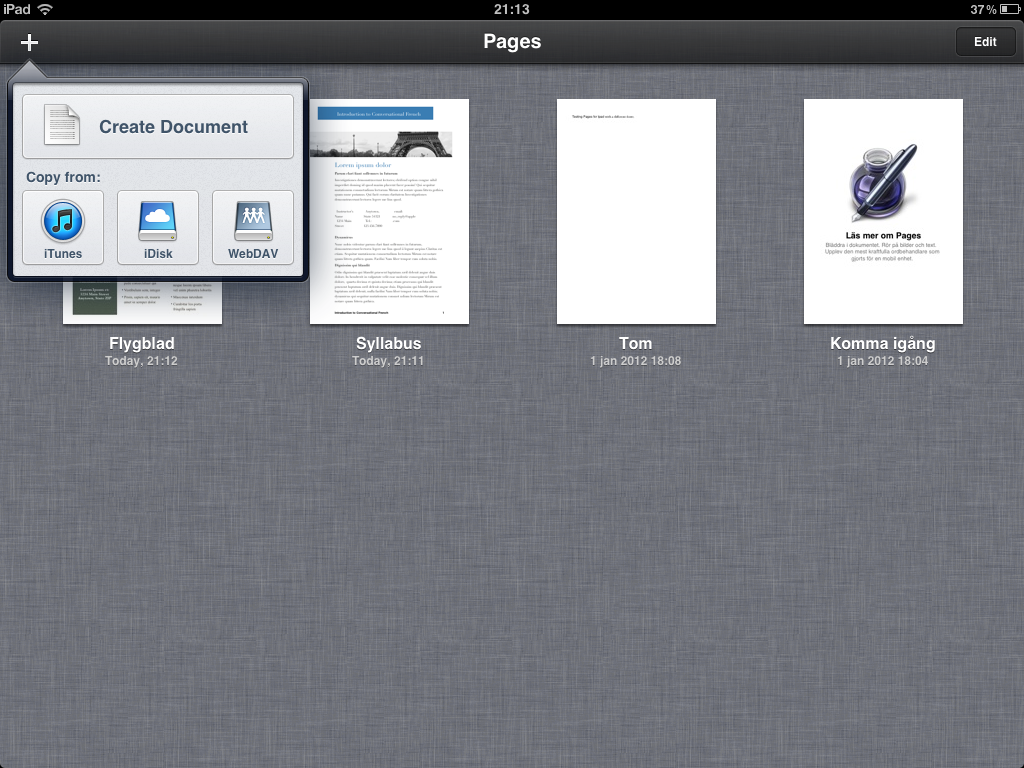
When first launching Pages for the Ipad it is clear that it is one of the more beautiful word processing apps for iOS. However beautiful doesn't cut it, it also have to be efficient to use. Pages integrate neatly with ICloud (Apples sync application), however Quickoffice Pro HD and other office apps have similar integration.

A somewhat strange sync thing is that Pages on the Ipad will not sync with Pages on the Mac, even-though they are apps from the same company in the same environment. Also Apple didn't include any sync with services such as Google Docs or Dropbox, which other office suites have (such as Quickoffice Pro HD)

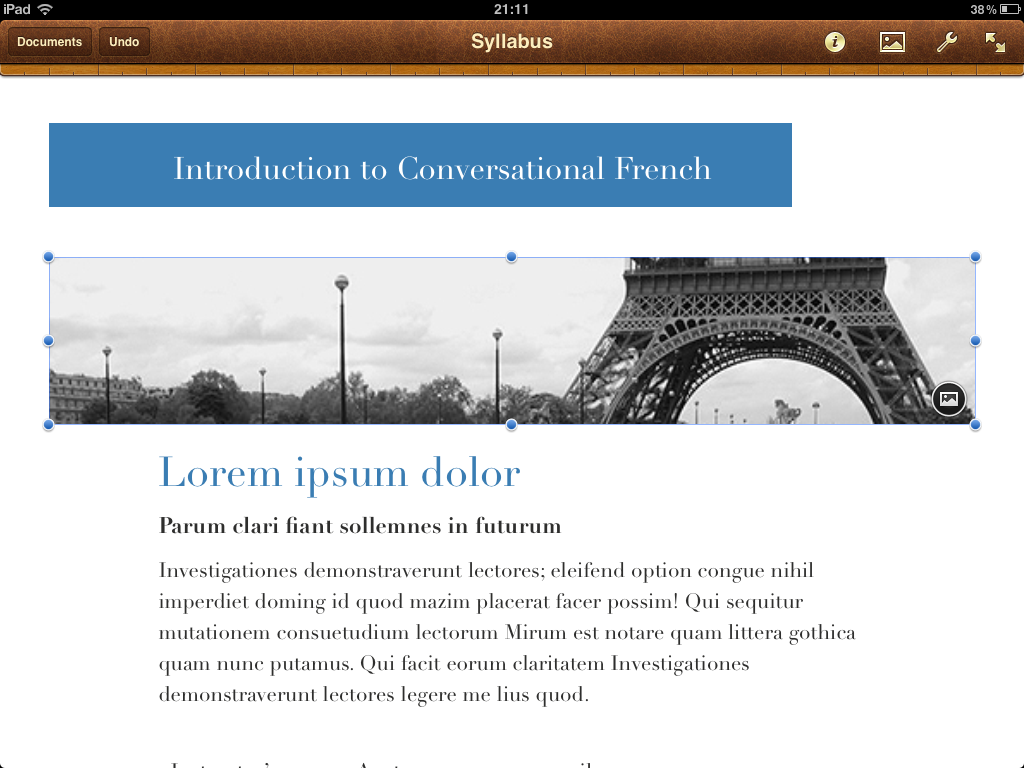
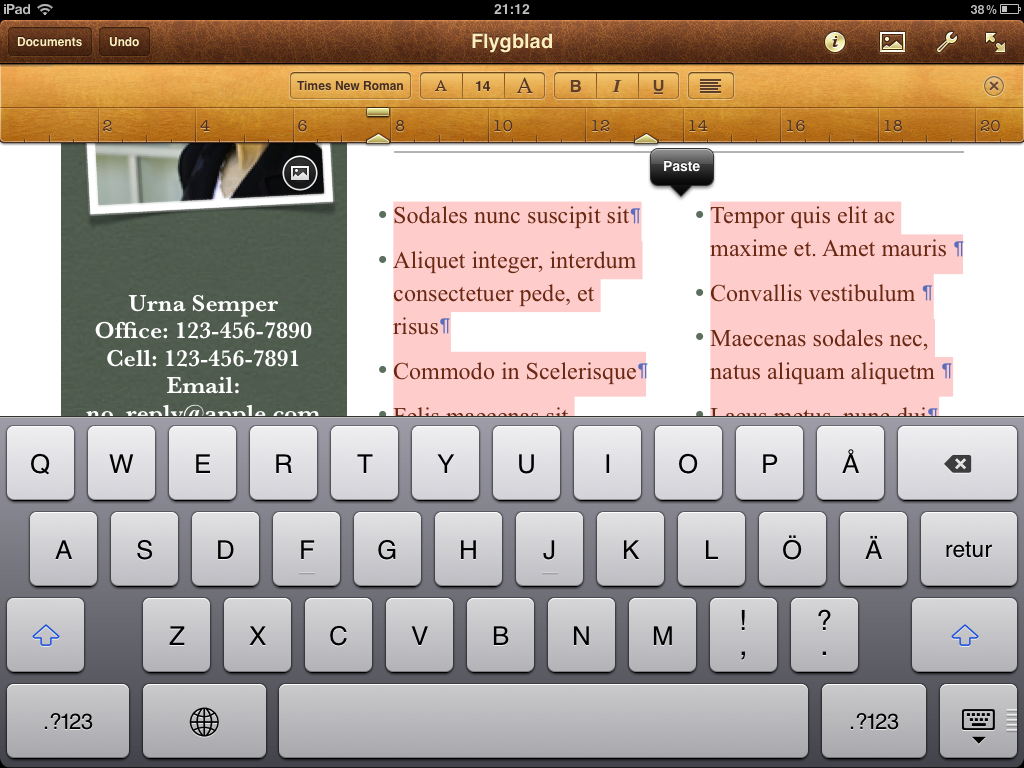
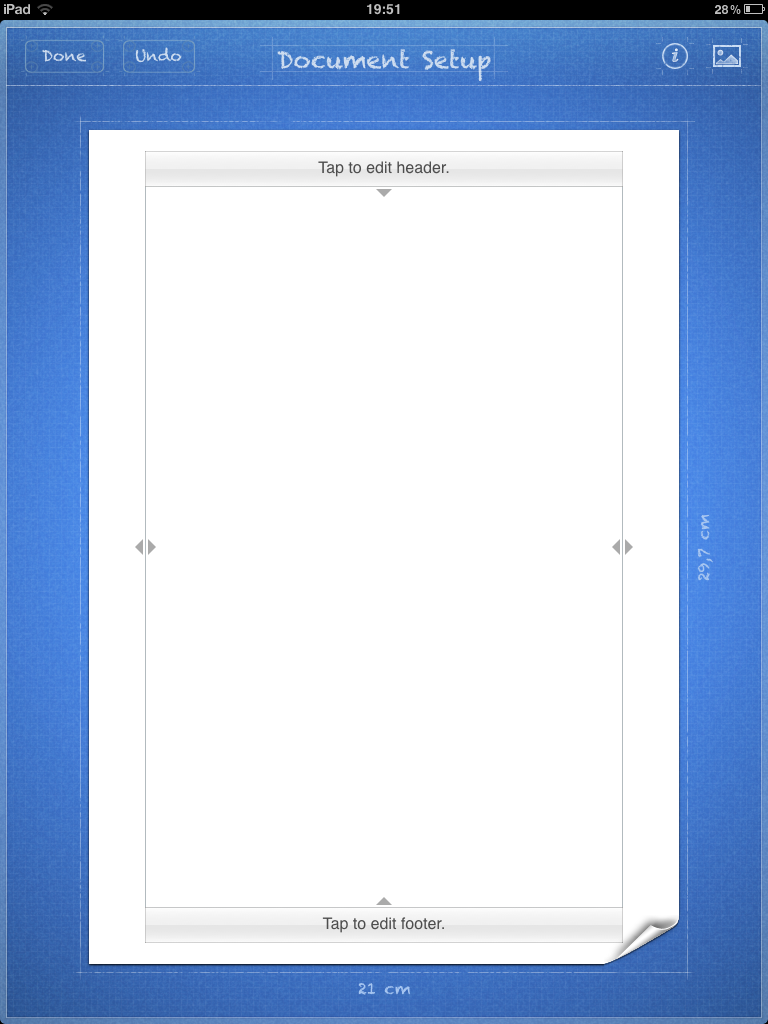
Apple Pages is easy to use, the interface design breathes Apple and should work for most people, even if you are used to Windows or Android software previously. It is possible to set margins and the overall size of the document as well as line spacing. Also Pages makes it possible to add more columns than one and create numbered lists.

Pages does have more layouting options than other word processing apps for the Ipad, for example it is possible to insert images and create tables (something that is lacking in Quickoffice Pro HD, where it is only possible to edit existing tables). Pages for Ipad also behave faster than the competition, for example when writing using the Apple Wireless keyboard with Ipad there is generally a slight input lag in Quickoffice Pro HD, but none in Pages.

A neat feature in Pages is the predefined templates for creating various publications, included are 16 templates for reports, invitations, letters and so on. However it is not possible to create custom templates in Pages for the Ipad, for example it is unlikely that a real estate broker would use a standard template from Apple, of course most businesses want their own custom templates.

Pages can handle most common files from for example Microsoft Word (.doc, .docx) and Pages (for OSx), it is also possible to view PDF-files.

Overall Pages for Ipad is the best word processing App for the Ipad, that doesn't make it perfect. It is easy to use but has its own set of issues, such as a lack of creating custom templates even-though Apple market it as a layout application.

If you are buying Pages for word processing and some light layout you will not be disappointed, but if you are after InDesign for the Ipad you are out of luck. Pages is also more expensive than the competition. At least if you want a whole office suite, since you will have to add Numbers and Keynote to the purchasing list, which all together will cost more than Quickoffice Pro HD or Office HD.

29Dec/110

Ipad Office Suites: Quickoffice Pro HD

Can tablets and mobile devices really be an alternative for heavy office users? Is it time to ditch the laptop in favor of your Ipad or Samsung Galaxy Tab? Read our review of Quickoffice Pro HD and find out how it compares to other mobile office suites.

Quickoffice Pro is available both for the Iphone and Ipad(HD), it is also available for Android devices and tablets. It is one of the more affordable alternatives on the market for tablet Office Suites. For $14.99 in the Apple Appstore you get Word-processing, Spreadsheets, Presentations and a PDF-reader. Compare that to Apple’s IWork where each separate application is about $9.99.

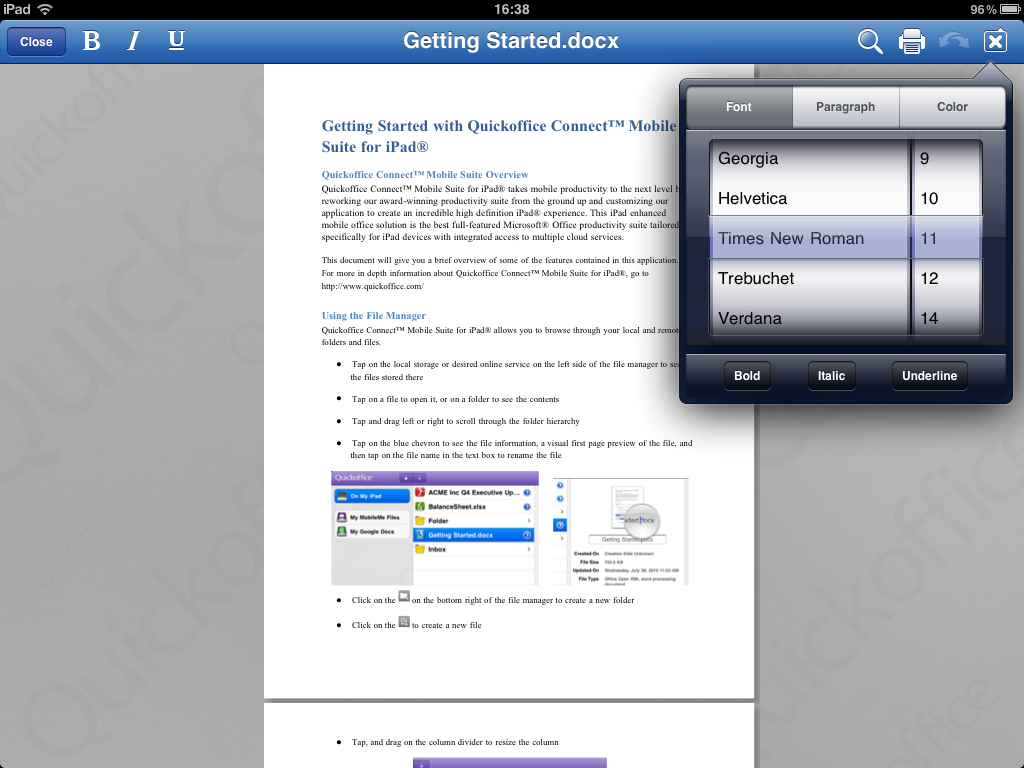
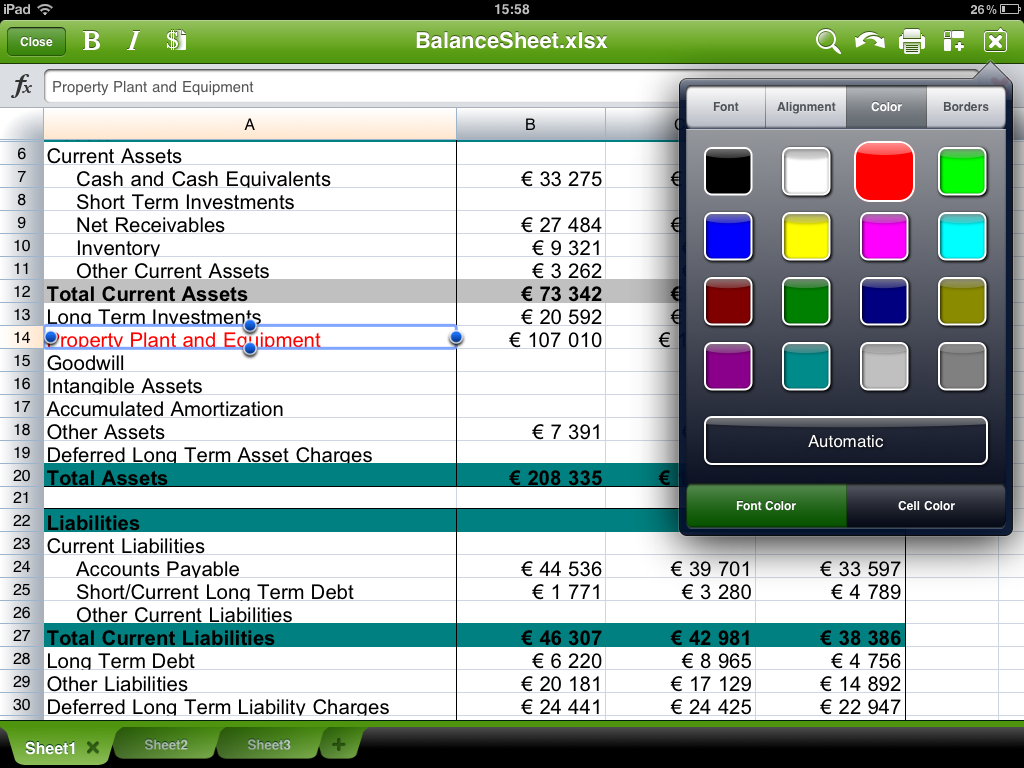
In the Word-processing application it is possible to do all the basic things, such as change font-size, add bullets change colors etc. If you would like to create more complex documents containing graphics, tables (it is possible to edit existing tables) or table of contents it will not be possible in Quick office Pro HD, but for writing memos, short summaries etc it works great. However Pages (from Apple) have most of the more complex features, such as inserting graphics and creating tables.

Similarly the Spreadsheet app works well for creating basic spreadsheets, with borders, different number formats, and developing simple functions (such as =SUM) etc. For more heavy duty spreadsheet work Quickoffice Pro HD will not be sufficient, for example you can’t use more complex formulas (such as COUNTIF, SUMIF etc).

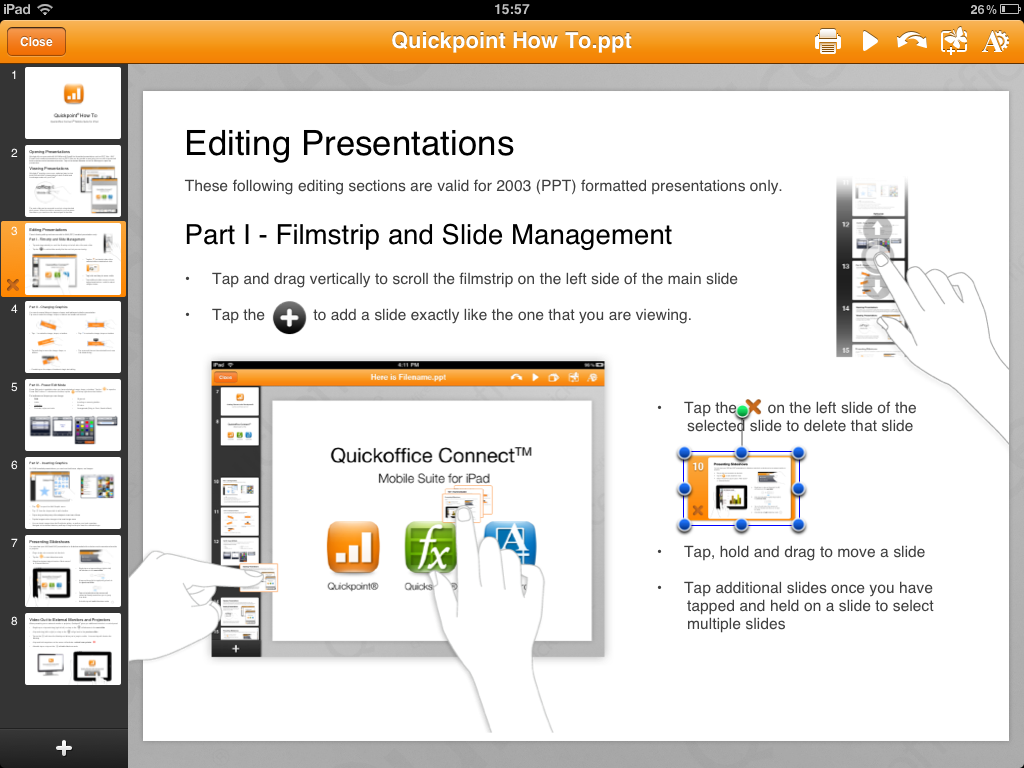
Another downside with the Spreadsheet part is the lack of charting features, which actually should have been included, especially given the price for Quickoffice Pro. The feature is available in Numbers from Apple, according to Quickoffice it should be possible to view charts created in Excel. Presentations in Quickoffice Pro HD is one of the suites stronger points, here it suddenly is possible to insert images from the Ipad. Also editing and creating a presentations is easy, but it is however somewhat limited and can be difficult if you are having a lot of objects stacked in proximity because of the touch interface. There are no animations or transition options.

Using Microsoft Office documents in Quickoffice Pro HD was no problem, they rendered without any problems and looked ok both in Quickoffice and in Microsoft Office on the desktop. Formats supported are Word (.doc and .docx) and Excel (.xls and .xlsx). When it comes to presentations the .pptx is format is not supported but the original PowerPoint format is (.ppt).

A nice feature in Quickoffice Pro HD is the sharing and syncing options, for example it it possible to connect it to Google Docs, Dropbox, Evernote, SugarSync, Box, Huddle Catch and MobileMe. It is also very neatly integrated into the app using folders and is easily accessible. Quickoffice Pro HD also have built in e-mail capabilities, but they are a bit strange since it isn’t integrated with the Ipad or Android mail setup on the device. You have to manually enter your own e-mail address as well, when we tested the e-mail service it didn’t work and returned an application error.

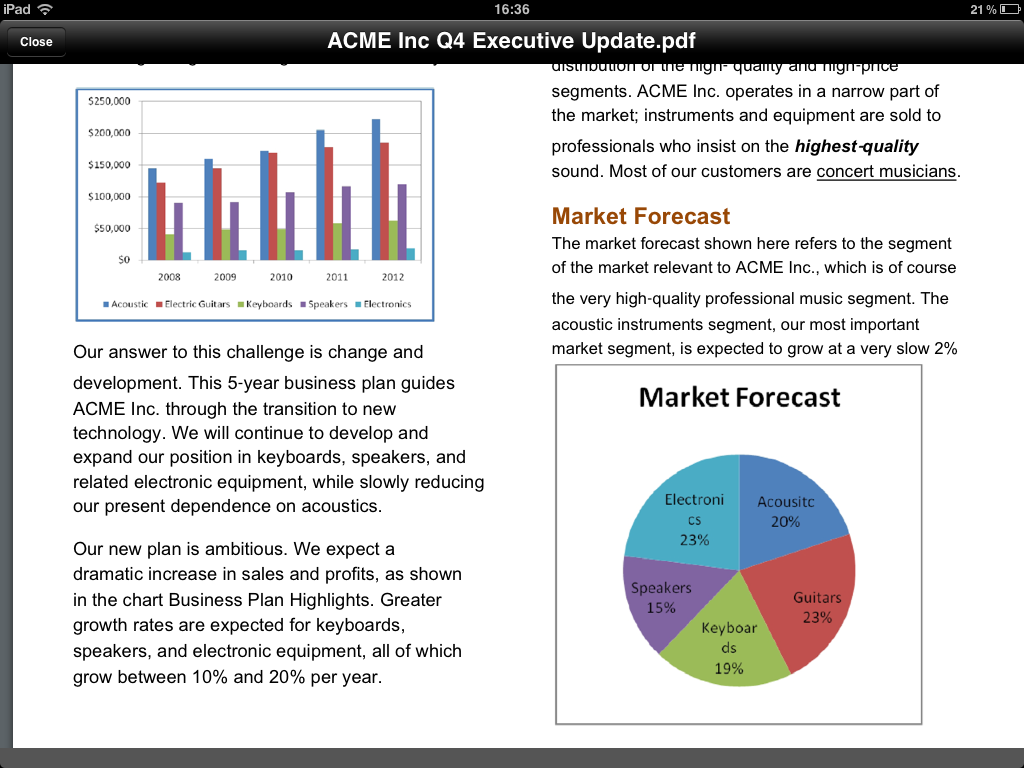
It is also possible to read PDF-files and save existing documents to PDF, something that often is needed in a business setting. As a PDF-reader the app works likes a charm.

Overall Quickoffice Pro HD is a solid application for reading and editing existing documents and spreadsheets, it’s perfect to use when away from your desktop or laptop. It is also easy to understand the user interface.

When we tested QuickOffice Pro HD we used it a lot on flights and airports, where you probably will not do any longer editing, but still need to get some work done. However Quickoffice Pro HD is limited to basic writing and editing, and is in most cases no replacement for a regular laptop office suite such as Microsoft Office or iWork.

[starrater tpl=10]

25Dec/110

Microsoft Office Web Apps

Microsoft Office Web Apps is a free online office suite, it is a direct response from Redmond to Google Docs and Zoho Docs, and is a first attempt to bring Microsoft Office into the cloud.

Office Web Apps was launched pretty late compared to Google Docs, and many other competitors. The suite makes Word, Excel, PowerPoint and OneNote accessible from any web-browser using the familiar (to many) Microsoft Office interface.

To use Office Web Apps a Windows Live-account is needed, the rest of the suite is free. Using Office Web Apps is actually pretty easy, it’s fast (even on slower connections such as mobile broadband) and works well in a Windows 7 / Internet Explorer environment.

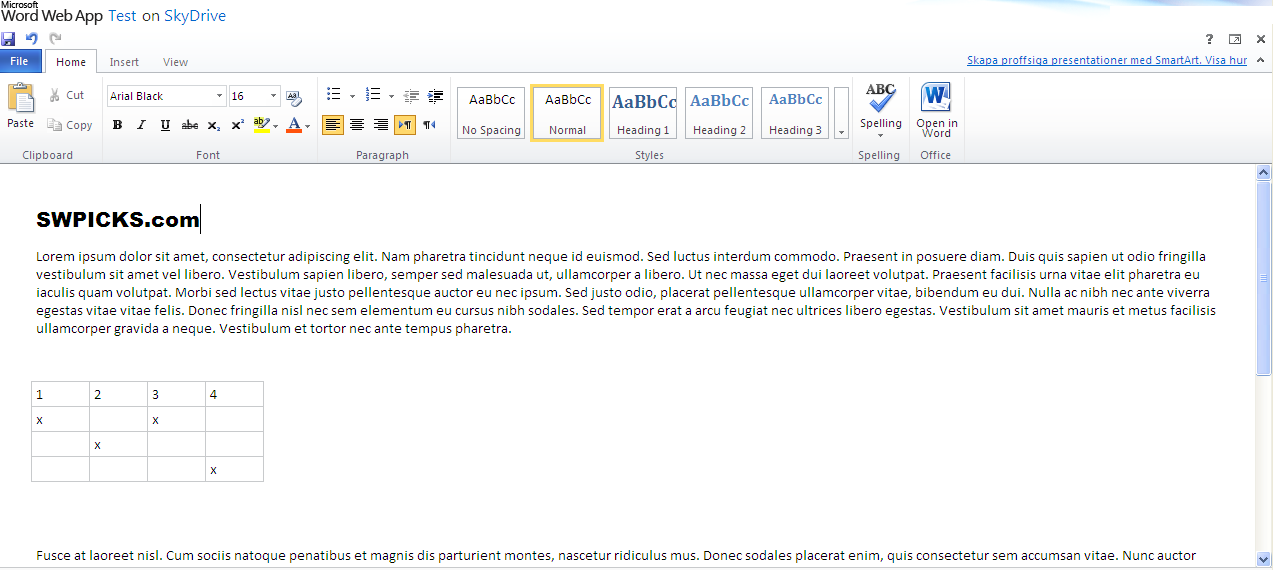
The interface is a stripped down version of the ribbon used in Office 2007 and 2010. Word is very similar to the desktop version, however creating and managing tables is a little bit different since there aren’t the same editing capabilities (for example resizing the whole table by dragging it).

Microsoft Office Web Apps connects with iStockphoto and similar services when inserting clip art imagery, it is also possible to insert your own images, links etc.

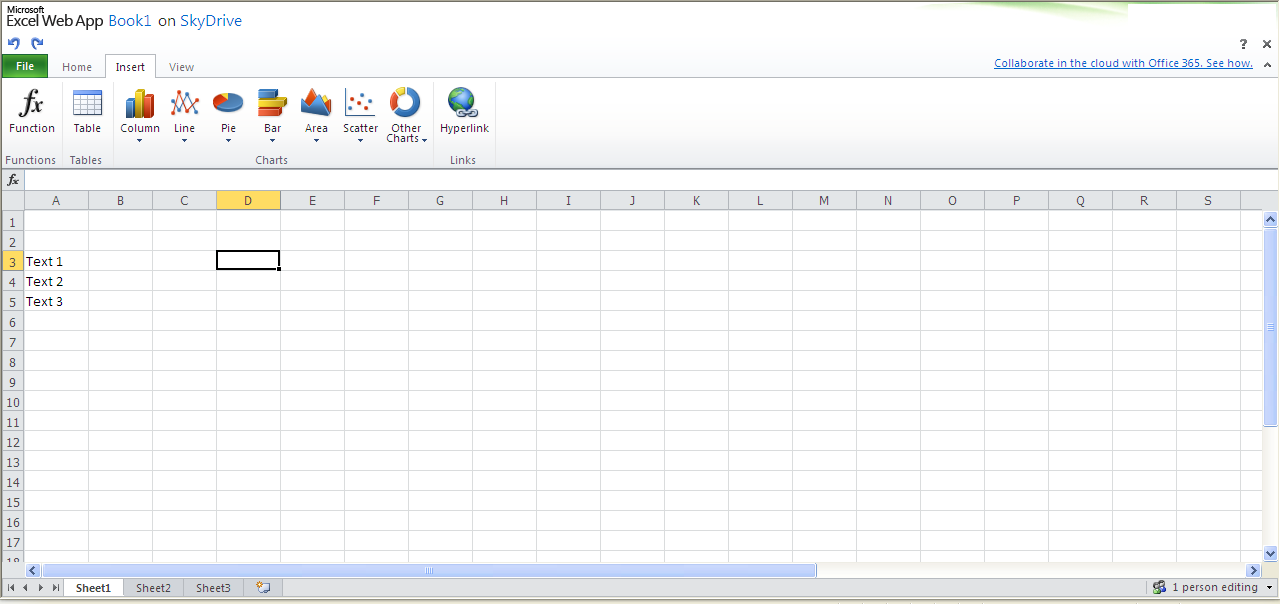
Using Excel is a nice experience, it is a basic version of Excel but strangely sufficient for most needs. For example it’s possible to use multiple sheets, create charts and a lot of functions are also available.

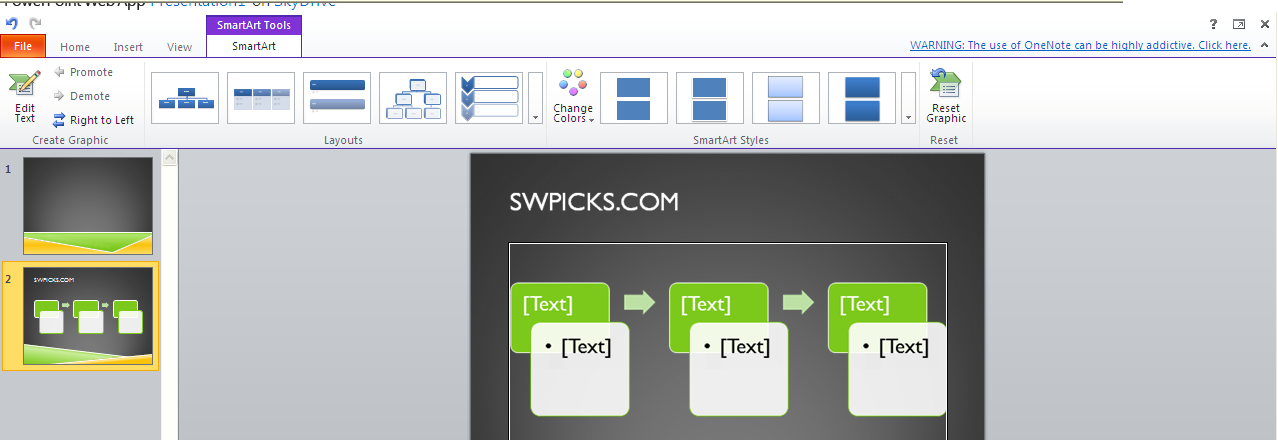
PowerPoint is also part of Microsoft Office Web Apps, it is however a bit limited when creating presentations compared to the desktop version. For example it isn’t possible to draw (but you can use the SmartArt tool), animations are not possible and the embedding video features is absent. However for creating basic presentations or editing existing ones created in the desktop application, it works.

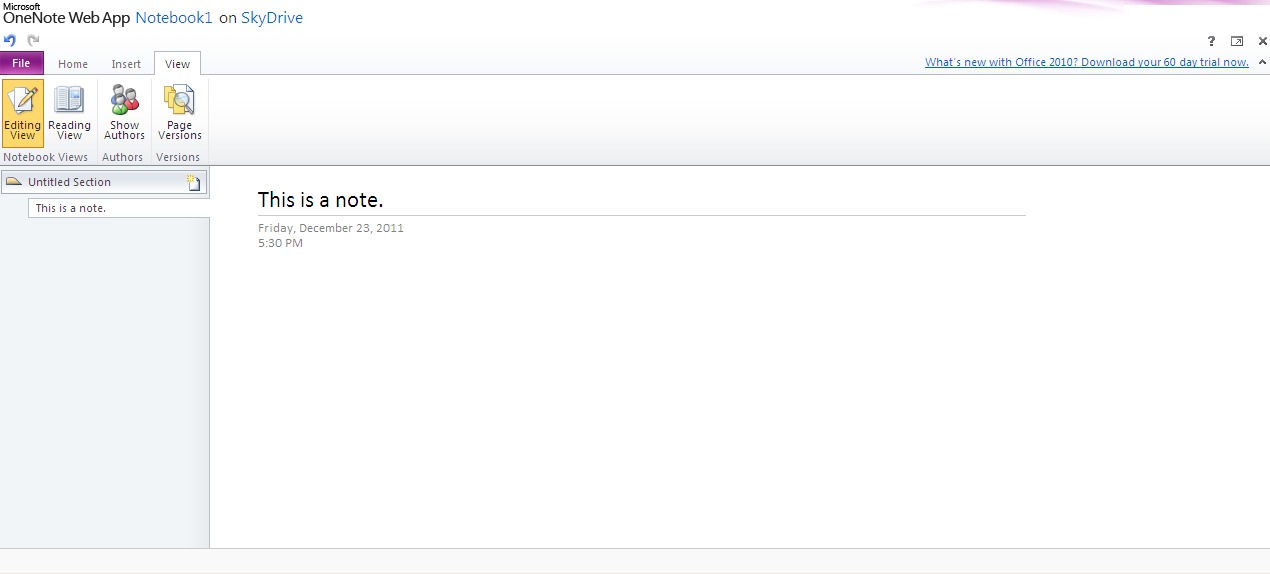
Microsoft OneNote is also included, it isn’t as easy to work with as the desktop version since it’s slower to cut and paste images and other material into the notebook. However OneNote is a perfect complement to the desktop and also the recently released IPad app.

Finally Microsoft figured out what to do with its ugly duckling storage service, Skydrive. It is now an integrated part of Web Apps with sharing and collaboration options. For example it’s possible to upload a document from Office 2010 to Skydrive and continue working on it in the cloud.

Overall Microsoft Web Apps is a solid online office suite, the best part is that it is familiar to Office users and can be used in integration with already existing desktop applications. It is even better than Google Docs in the sense that it integrates with the most familiar Office suite out there. Some reports even suggest that Microsoft Web Apps even have more users than Google Docs, which is not surprising.

Microsoft Office Web Apps is  sufficient for most needs, sure it isn’t possible to create advanced scripts, macros or templates, but then again I think most users actually do more simple tasks in Microsoft Office, meaning that the desktop Office suite from Redmond is overkill for average users.

[starrater tpl=10]

9Jan/101

Creating Flowcharts and Diagrams with Dia

Microsoft Visio has long been the standard for drawing flow-charts and other diagrams, however things have changed rapidly and now the open-source application Dia is mature enough to be an alternative.

Dialogo

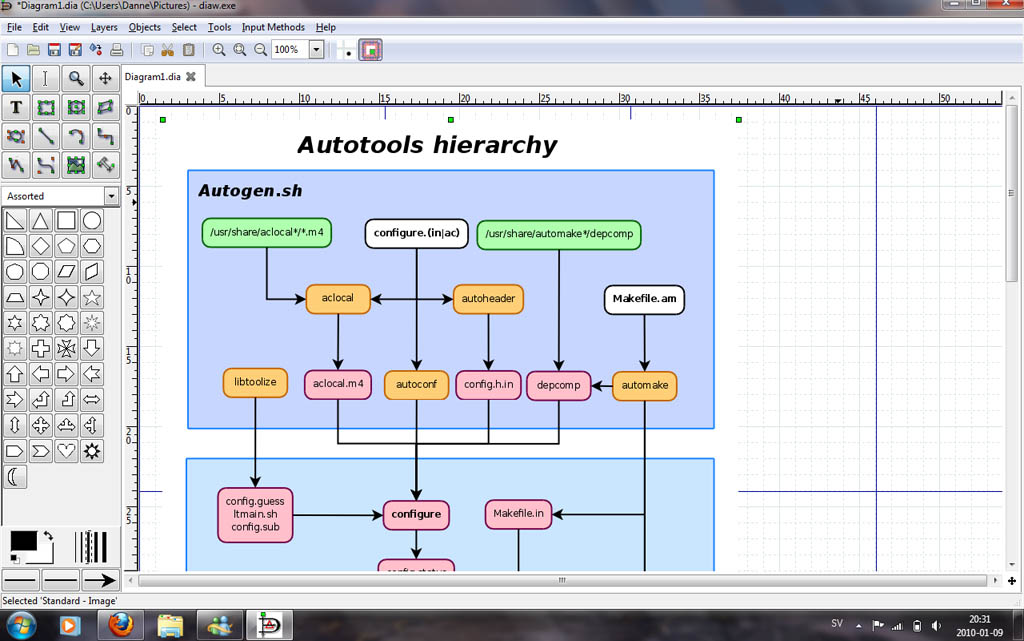
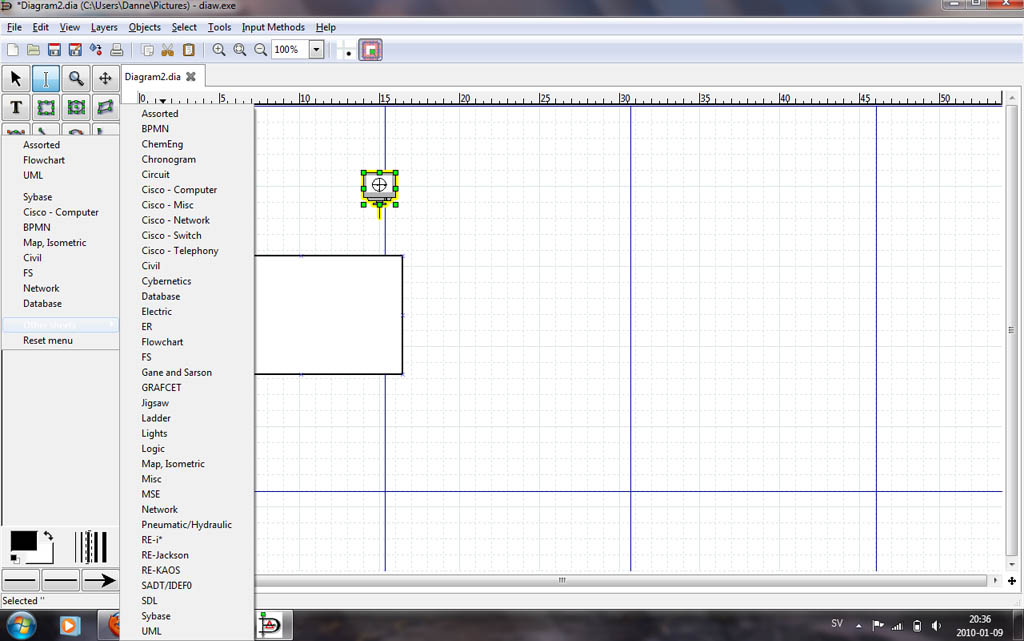
Dia can be used for a variety of tasks; flowcharts, UML-diagram, network diagrams and electrical circuits. There are also several shape repositories available online to extend the program further.

The user-interface in Dia is similar to Microsoft Visio, which has a solid user interface by default. It is easy to understand and work with. Sometimes it is even more intuitive than more powerful and commercial applications. The toolbox is easy to understand for most users and the way Dia handles shapes is intuitive.

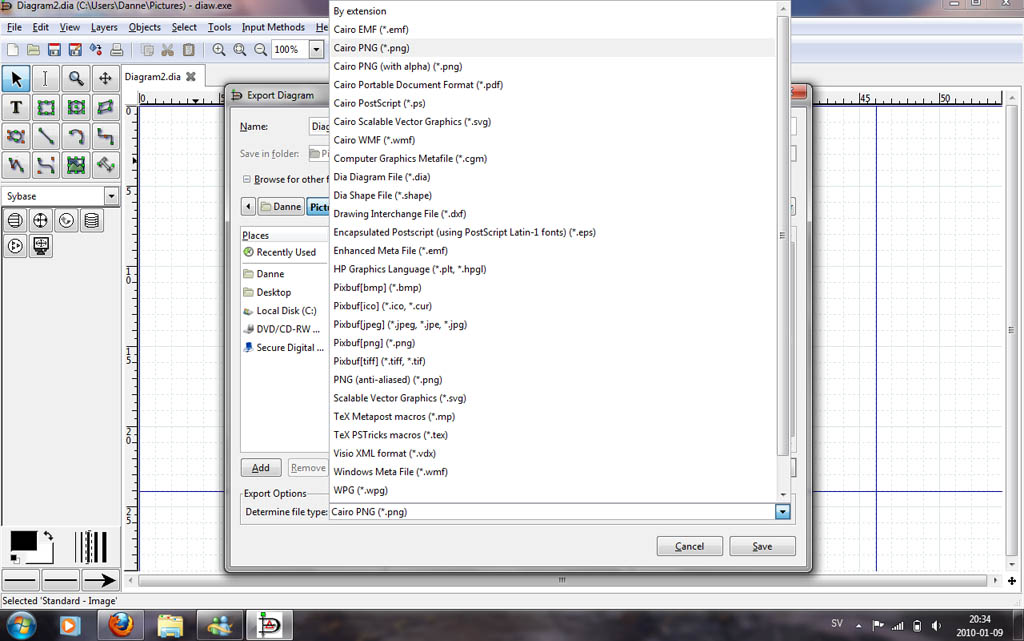
Flow-charts are often not drawn in a bubble, they usually have some other usage, for example in an application, or on the web.  Dia has a number of export options, including .SVG,  .PNG, .WMF etc. However the export options are not as well developed as in Microsoft Visio. For example it isn’t possible to create clickable flowcharts, which can be displayed in a web-browser.  There is obviously a lack of Microsoft Sharepoint integration in Dia but also integration with open-source content management systems.

Dia also has a limitation when it comes to assigning characteristic and other information to shapes.  Other applications have the ability to integrate data with the shapes, for example if a shape of a computer could contain processing power etc. This might not seem like a big draw-back but when drawing complex flows and networks it is actually a huge benefit being able to assign information to objects.

Overall Dia is a pretty good light-weight program for drawing flow-charts, network diagrams and what not. It is not as powerful and integrated as commercial alternatives such as Microsoft Visio, but it is still a viable alternative to get basic drawing done quickly.  When on the road I was using my net book, it didn’t have Microsoft Visio installed so I downloaded Dia for the first time. In just a matter of minutes I was up and running drawing flow-charts, that is how powerful open-source software can be. Dia is available for Windows and Linux. With a little tweaking it can also be compiled on MAC OS X.

Microsoft Visio has long been the standard for drawing flow-charts and other diagrams, however things have changed rapidly and now the open-source application Dia is mature enough to be an alternative.

Dia can be used for a variety of tasks; flowcharts, UML-diagram, network diagrams and electrical circuits. There are also several shape repositories available online to extend the program further.

The user-interface in Dia is similar to Microsoft Visio, which has a solid user interface by default. It is easy to understand and work with. Sometimes it is even more intuitive than more powerful and commercial applications. The toolbox is easy to understand for most users and the way Dia handles shapes is intuitive.

Flow-charts are often not drawn in a bubble, they usually have some other usage, for example in an application, or on the web.Dia has a number of export options, including .SVG, .PNG, .WMF etc. However the export options are not as well developed as in Microsoft Visio. For example it isn’t possible to create clickable flowcharts, which can be displayed in a web-browser. There is obviously a lack of Microsoft Sharepoint integration in Dia but also integration with open-source content management systems.

Dia is limited when it comes to assigning characteristic and other information to shapes. Other applications have the ability to integrate data with the shapes, for example if a shape of a computer could contain processing power etc. This might not seem like a big draw-back but when drawing complex flows and networks it is actually a huge benefit being able to assign information to objects.

Overall Dia is a pretty good light-weight program for drawing flow-charts, network diagrams and what not. It is not as powerful and integrated as commercial alternatives such as Microsoft Visio, but it is still a viable alternative to get basic drawing done quickly. When on the road I was using my netbook, it didn’t have Microsoft Visio installed so I downloaded Dia for the first time. In just a matter of minutes I was up and running drawing flow-charts, that is how powerful open-source software can be. Dia is available for Windows and Linux. With a little tweaking it can also be compiled on MAC OS X.
14Jul/090

Foxit PDF Reader – Alternative to Acrobat Reader

Foxit is the most widely spread free alternative to the massive Adobe Acrobat Reader.   It is said to be more light-weight and faster than the Acrobat Reader, of course we wanted to find that out.

For reading PDF files Adobe Acrobat Reader takes up 230 MBs, that is a lot of space compared to Foxit, which does the same thing only taking up 7 MB. Hard drive space is not really an issue today, but it does make you wonder what Adobe put in their reader that Foxit did not.


Installing Foxit is a breeze, the executable is just 3.6 MB and the whole installation process takes about 30 seconds on a reasonable fast machine.  After install you get the option of installing different plug-ins, for example there is a plug-in for Firefox (which we will get back to).

The interface in Foxit is less cluttered than Adobe Acrobat Reader but looks a bit dated. However if you worked with Adobe Acrobat Reader you will feel at home in Foxit.  While Foxit features the standard array of tools and features it brings nothing new to the table. From a feature stand-point users will do just as well with Acrobat Reader.

Foxit is pretty fast, we have not done any scientific tests but viewing a 25 MB PDF-file with a lot of images was surprisingly fast. Even the Foxit PDF viewer in Internet Explorer is much faster than Adobes.

Foxit also came with a Firefox plug-in, which we did not have any luck with. When opening a PDF file in Firefox the browser notified us of that the server was busy, and then the browser crashed.  Then we tried again and it happened all over again.

In other third party PDF readers the files often looked differently than in Acrobat Reader, Foxit does a great job rendering PDF files and we could not tell any difference between the two readers.

Adobe Acrobat Reader have a number of different features to sign documents digitally, this is very handy if you or your business is using one of Adobes lifecycle products. Foxit has no similar features built in, which makes it less useable in an already established Adobe environment.

What does the Foxit people make money on if their PDF reader is free, there has to be a catch, right? Indeed, Foxit has applied the same business model as Adobe, to get the Pro version of Foxit you have to pay. The pro version contains the possibility to draw in PDF files, attach files and save them without evaluation markings. However commenting works fine in the free version.

For small businesses and individuals Foxit is a very good alternative to Adobe Acrobat Reader, it is overall leaner and faster. However in a business setting with clients using extra Adobe unique features (such as document signatures or security options) Adobe Acrobat Reader is a better choice.

Filed under: Business No Comments
6Jun/090

Online Office Suites Part 4: Microsoft Office Live Beta

Microsoft has obviously felt pressure from all the online office suites out there in the cloud.  Last year the Redmond company launched Microsoft Office Live Beta to get their foot in the door. But why should Microsoft bother about small-time cloud applications when they have by far the largest market share with in the business application segment? And making tons of money?

The answer is really that the future of software will be in the cloud, client installed applications such as Office 2007 will not be as popular or frequently used as today.  Right now cloud based applications are usually used by small businesses and individuals; they are also often tailored for those particular groups.

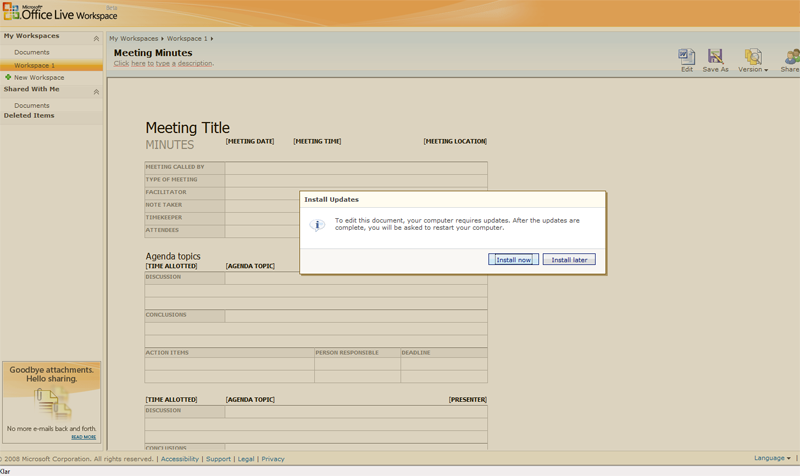
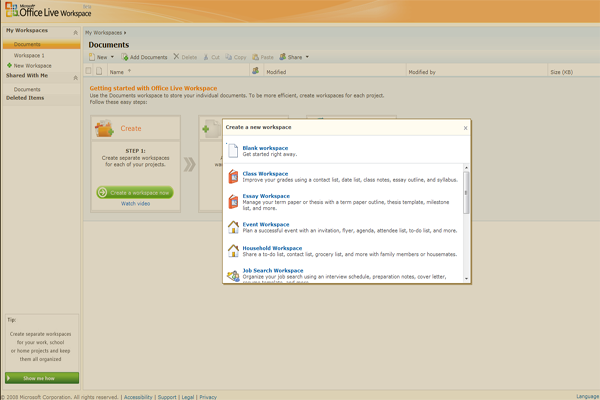
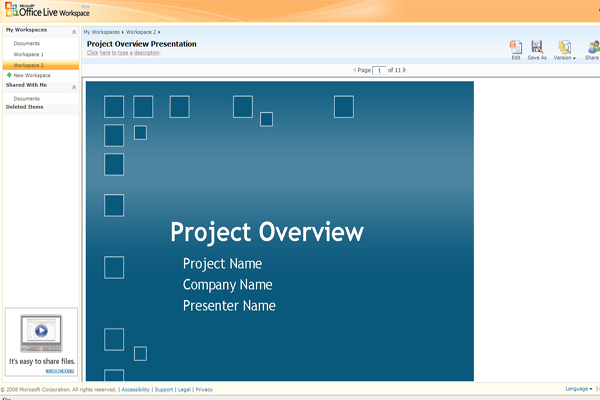
Microsoft Office Live Beta is no exception, when you register with the Beta-program you get the basics; Word, Excel and PowerPoint. The Office Live interface resembles a lot of other Microsoft online applications, it is easy to work with and the interface is after all something you recognize. The concept is that you create a workspace, add or create documents and then share it with friends or colleges. That is basically how all other online collaboration apps work.

Editing a document in Google Docs or Zoho is easy,  you do it in your web-browser from any computer in the world. To my surprise Microsoft Office Live works differently, first of all you have to download a setup file, which renders it useless in public environments. Then you have to go through an installation that requires you to restart your computer. It is a long way from the simplicity in Zoho.

After the restart you are good to go, but documents can only be edited in their native applications. It means that you will need Office installed and when you open a document from Office Live it will launch Microsoft Office on your desktop. I like Microsoft Office 2007, but I think the whole point of office suites in the cloud where the ability to edit the documents from any computer anywhere.  Redmond does not seem think so, their vision of cloud computing is collaboration. So what Office Live adds to Office 2007 is the ability for other users to comment or view your documents.

Office Live is very simple and it works great as a collaboration tool for Office users. But it can’t live up to the competition since it is not possible to edit documents in the web-browser, probably because Microsoft operate under the illusion that they are defending their Office market by forcing customers to buy a copy of Office.

9May/093

Springbase, Alternative to Zoho Creator

Despite the web 2.0 and cloud computing craze most online services are about taking notes or sharing 140 character posts. Springbase is however an interesting application from a business and developer stand-point. In short Springbase is an alternative to Zoho Creator, it has less features but behaves a lot more like Microsoft Access.

The licensing agreement in Springbase is very favorable; it is free for developers and costs for businesses when the application grows in volume.

Compared to Zoho Creator Springbase has very few features. However it makes it very simple to create a database quickly and integrate it into an existing website. For example I created a contacts database in just 15 minutes. Of course it helps if you have worked in Microsoft Access a lot before, since the interface in Springbase works the same way. The properties window is the same as in the Microsoft product, but with fewer options. The Table, Query, Report and Page sections are also influenced by Access. Springbase also has a pretty neat tab-system, which makes it easy to change between tables, queries and reports.

If you or the company you are working for have an old Microsoft Access application lying around it is possible to import it into Springbase. The feature works but the database imported can sometimes be altered, for example after importing a database with a table with one ID column Springbase added an additional ID column.  The Databases in Springbase can be edited by several administrators; it is possible to invite additional people to the database easily.

[ad#Content Adsense]

As with most other cloud computing applications it is not clear if the data uploaded to Springbase is secured. Since Springbase is not as well known and does not appear to have any backing of big Internet players, it has to be considered a risk to use it for business critical applications.

A great thing for Springbase would be to take advantage of other cloud computing services, such as Amazon S3. Then the data security issues would be gone. However Springbase is very good for putting up a database fast and also for experimenting with databases. It could also be used in an educational setting as it resembles Microsoft Access and the OpenOffice alternative, but requires no installation or licensing.

8Mar/090

Online Office Suites Part 3: Zoho Creator

Microsoft Access has been the weapon of choice for businesses when creating small applications, there are probably a millions of small programs and databases built in Microsoft Access. If you have developed applications for enterprises in Access you also know the pains associated with it. It is hard to make any changes once the application has been launched (you need to re-release it and what not), applications with multiple users have to be packaged and often an external data storage such as Oracle is needed.

Zoho Creator is a web-based alternative to Microsoft Access sharing the concept of creating database applications with relative ease. A Zoho Creator application is free of charge if less than five users are using it. Since Creator is web-based the users of the database will have access to it from anywhere (permissions can of course be set), remember how painful it is to create web-interfaces to databases made in Access?

A table in Zoho Creator is basically called a view and consists of several records. It is easy to import data from other applications such as Excel or .csv files into a view. It also works well the other way around, Zoho Creator exports records in csv, pdf or RSS format. It is not uncommon for database administrators to change the same setting on maybe hundreds of records. Zoho Creator has a feature named Bulk-edit where it is easy to change a setting for multiple records.

The user-interface in Zoho Creator is in most situations a breeze to use. It is easy to create decent-looking layouts quickly, and the learning-curve is virtually zero if you ever worked in other similar database applications.

However creating more advance applications requires a bit more from the developer, naturally. For deal with advanced features Zoho created Deluge scripting, which stands for Data Enriched Language for the Universal Grid Environment... So what Zoho basically mean is that widely spread scripting languages like Python can’t be used in Zoho. This is a huge drawback, since there are hordes of Python developers out there, but not that many Deluge developers.

Zoho have tried to solve the problem by launching Developers Zone, which is basically like Elance but for Zoho oriented developers. There is also Zoho Marketplace, which is basically a store with apps that can be installed in your Zoho Creator solution. Most of the applications are business oriented within sales, marketing, IT, HR and Customer Services. Many of the applications are free and I think most small businesses will find everything they need in the Zoho Marketplace.If you have developed a useful application you can upload them to the Zoho Marketplace, and share them with other Creator users.

Zoho Creator is in my opinion the only simple alternative to Microsoft Access right now; there will probably be competitors out there in a while as cloud computing catch on. However if you have slim programming skills and just want a fast way to set up a customized web application, Zoho Creator is the way to go.